
Omada - How to adopt a switch to the controller
TP-Link has a number of models that can be used as standalone switches, but also can be added to the Omada controller. In this guide, learn how to get your new switch adopted to your HostiFi Omada controller.
NOTE: Once the switch is adopted into Omada, the local GUI becomes non-functional.
Logging into the switch
The first thing to do is log into the gateway. By default, the TP-Link switches are programmed to obtain DHCP. Find the IP address by checking your DHCP lease table and log into that IP address. You'll be greeted with a log in page.

The default username and password for a TP-Link is admin and admin
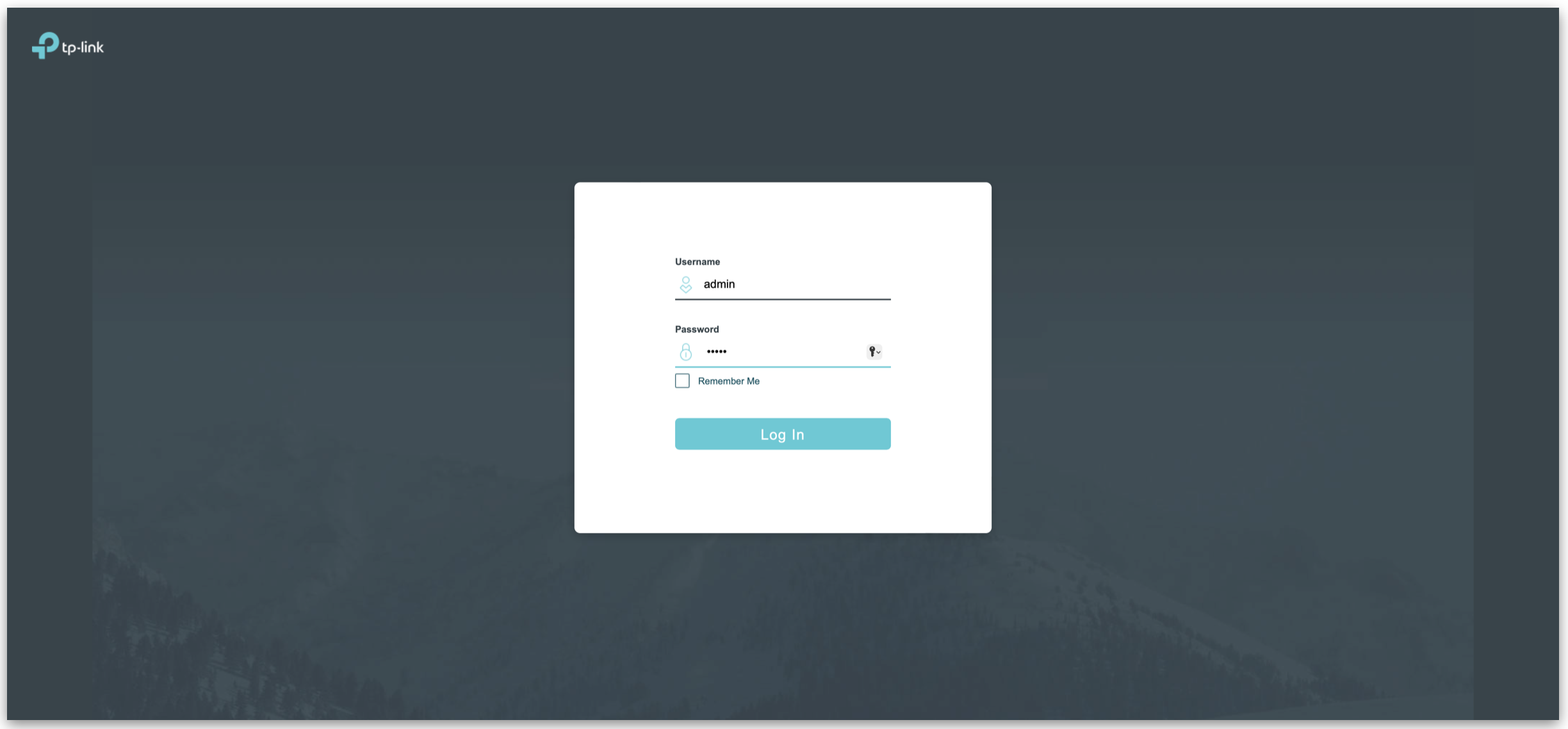
Next, change the password to something more secure

Now, you'll be presented with the TP-Link Switch dashboard

Finding your inform URL
Now we have the switch online, we can get it connected to our cloud instance of Omada. If you have connected your controller to the Omada cloud, simply go to omada.tplinkcloud.com and choose your controller. Otherwise, log in to app.hostifi.com and choose your Omada controller.
First, go to 'Settings'

Next, click on 'Controller'

Scroll down to the section 'Access Config' then copy the IP address or hostname found here.

Adding the inform URL to the switch
The final step is to paste the inform URL into the switch
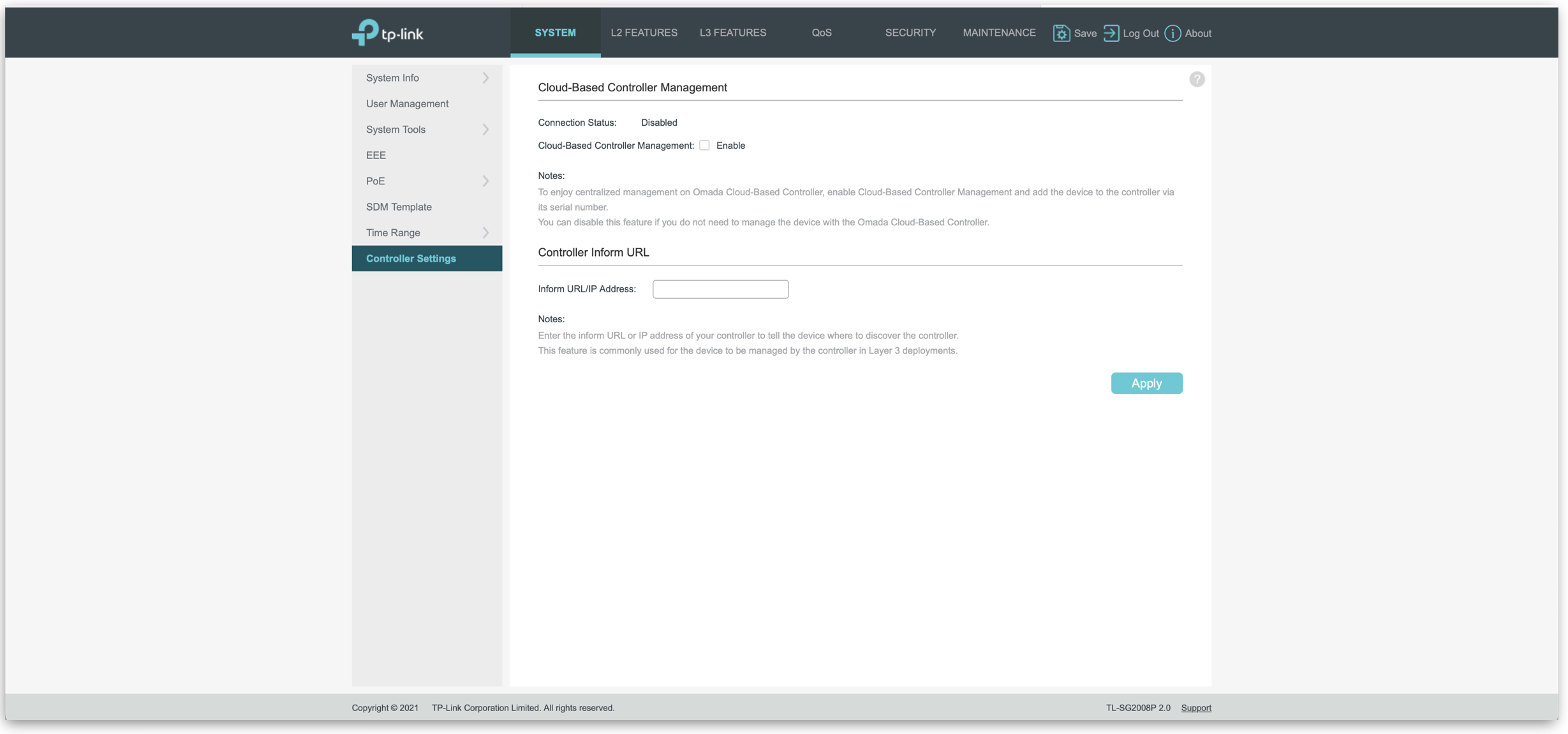
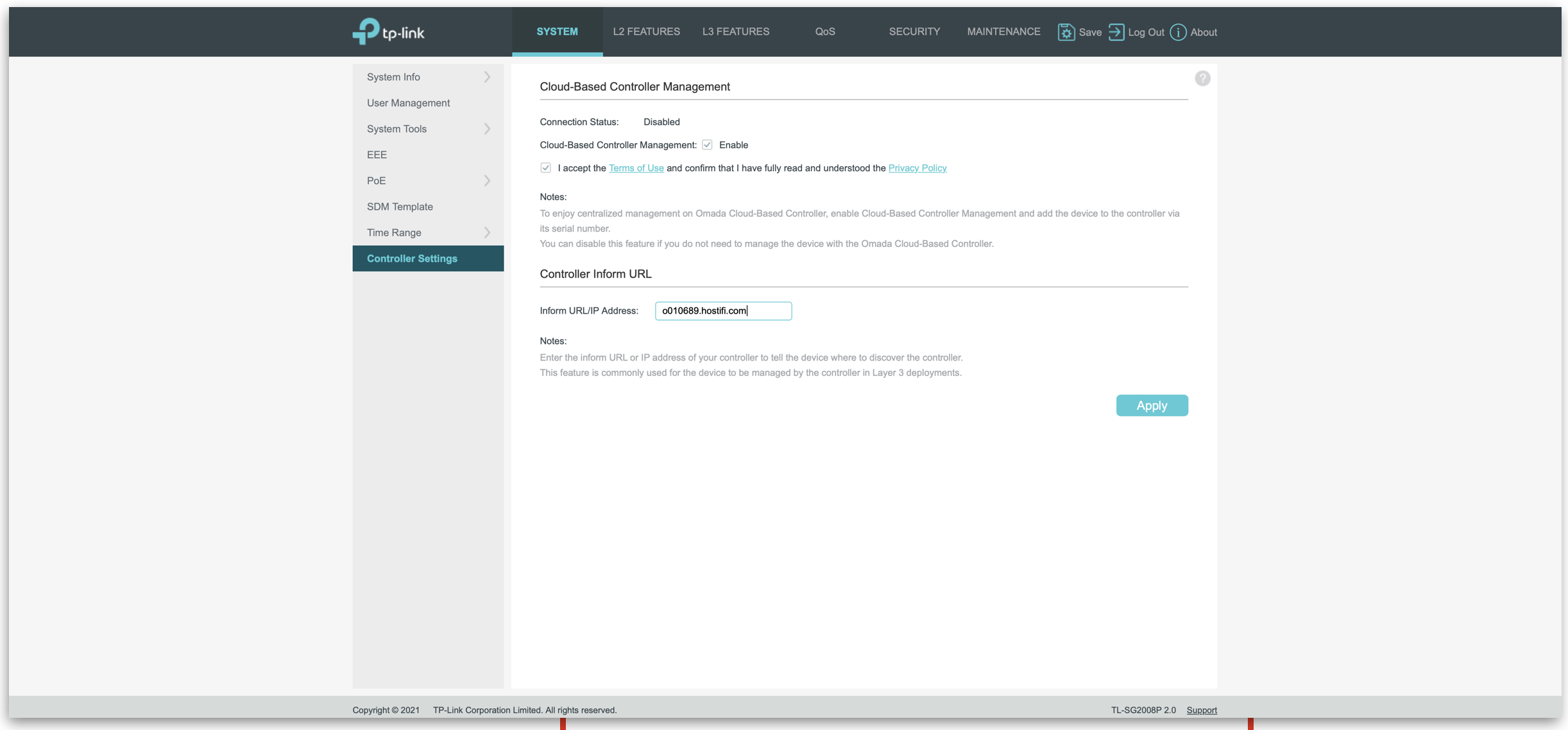
Log back into the local GUI of the device and open up the 'System Tools' section, then click on 'Controller Settings'
Next, tick the 'Enable' box for cloud-based controller management, accept the terms and conditions and then, paste in your inform URL from earlier. Finally, click 'Apply'.
Checking Omada
The very last step is to go back to the Omada dashboard and adopt the router/gateway.
It'll show up as 'PENDING' - click the tick action button to the right to adopt the switch

You may see an 'Adopt Failed' notification and it will then ask for a password. Simply enter in the username and password you used to setup the gateway in its own local GUI. The device will then adopt as normal.
NOTE: Once adopted, the device will use the device credentials set within Omada.
Video
About HostiFi
HostiFi provides hosting for Ubiquiti software platforms, with servers for UniFi and UISP. We also offer network consulting, with HostiFi Professional Services.

Get the Ubiquiti Top 20
Each month our team sifts through Ubiquiti news and content from around the web and delivers 20 of our favorite links to your inbox.
View recent issues
No spam. Unsubscribe anytime.
🤩
Discovered 3+ things that I did not know and will have a material impact on my business.
Newsletter Subscriber
🤩
All the info I want/need in a single clean thread! Perfect!
Newsletter Subscriber
🤩
Providing super valuable information to keep the community in the know. Awesome links page, Thank You.
Newsletter Subscriber