
UISP - How to add the UISP Router to the UISP Application
Learn how to get the UISP Router and UISP Router Pro added to the UISP Application for the first time, whether it is hosted by HostiFi or any other cloud hosted UISP Application.
If you want fast and reliable UISP hosting, check out HostiFi with expert support, regular backups, managed updates and prices from $19 per month.
To learn more about our hosting plans, create an account or book a free demo to get started.
UISP supports the provider devices from Ubiquiti. UniFi devices are managed by the separate UniFi Controller. UISP can manage airMAX, LTU, airFiber, EdgeMAX, UFiber, airFiber, UISP devices and more.
Web GUI Method
As of UISP Router 5.0.1, Ubiquiti now includes a functional GUI on the UISP Router, meaning the device can be adopted to the UISP Application or used in standalone mode.
First, plug in the UISP Router to power and plug a network providing DHCP into either the SFP port or port 1.
Make sure to visit https://uisp.lan rather than the gateway IP address handed out via DHCP. Otherwise, you'll see this warning message.

Once done, you'll see this message instead. Click on Next to get started.
Clicking on Other setup options will show you how to use the mobile app to adopt the UISP Router.

Next, pick a name for your device, then click Next

Then, set a username and password. As of 5.0.1, Ubiquiti requires at least 12 characters

Next, the UISP Router will go through a configuring process for around 1-2 minutes and test its internet connection

Once that has been done, the GUI will now be available to view. Click on 'Go to Dashboard' to continue

Now you have access to the GUI. To add it to UISP, click on the plus button

Next, click on UISP Key and paste in your key. If you are not sure where to find your UISP key, see our handy guide here.

Head back to the UISP Application and you'll now see this message, click Adopt, pick or create a site and the UISP Router will be adopted to the UISP Application.

UISP App Method
First, plug in the UISP Router to power and plug a network cable in providing DHCP into either the SFP port or port 1. Then, launch the UISP app on your smartphone.
NOTE: Make sure permissions are enabled to allow Bluetooth access to the UISP app.
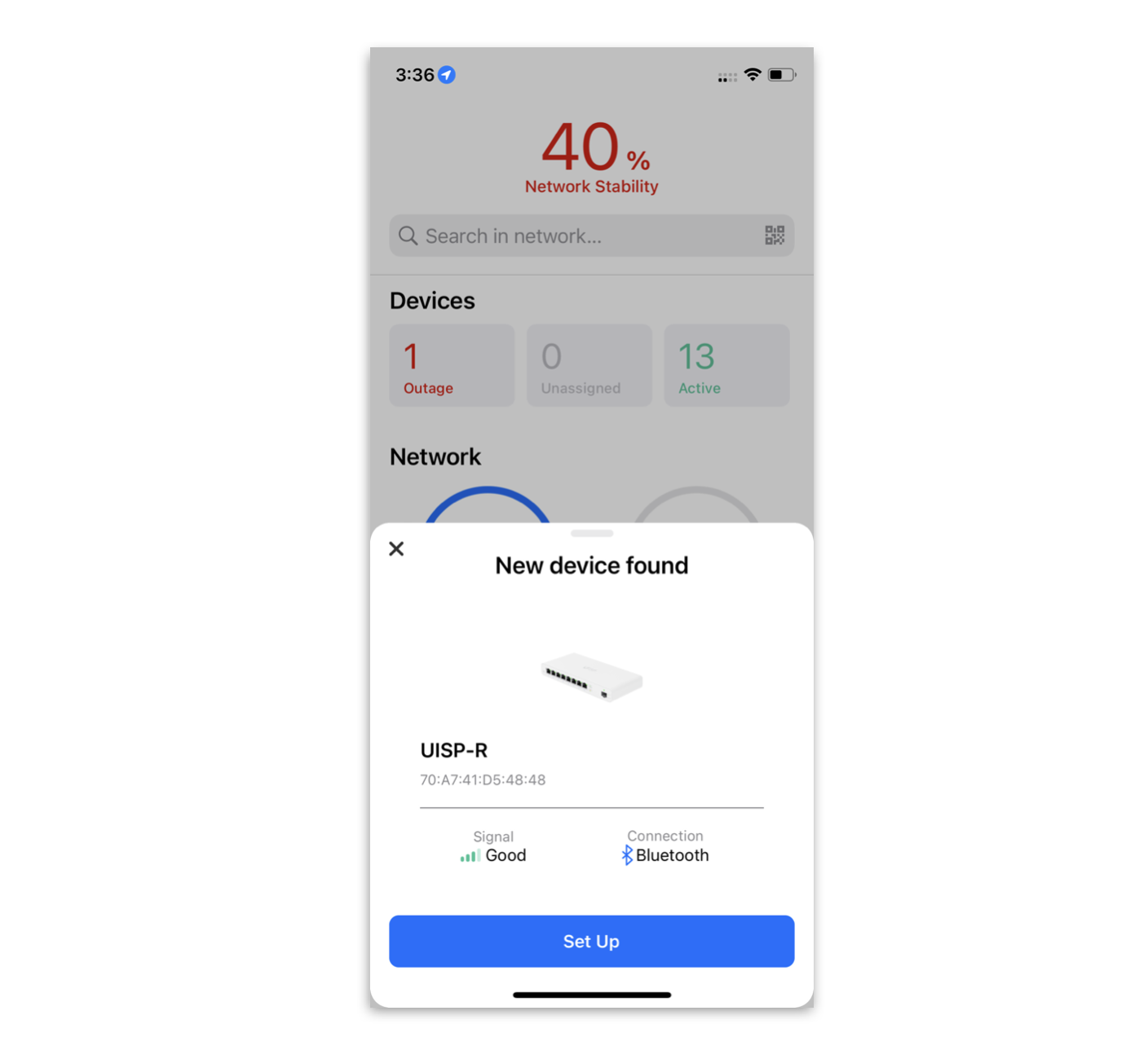
After not very long, the UISP Router will make itself discoverable over Bluetooth. Tap 'Set Up' to continue.
Next, it'll go through and configure itself and do some speedtests.

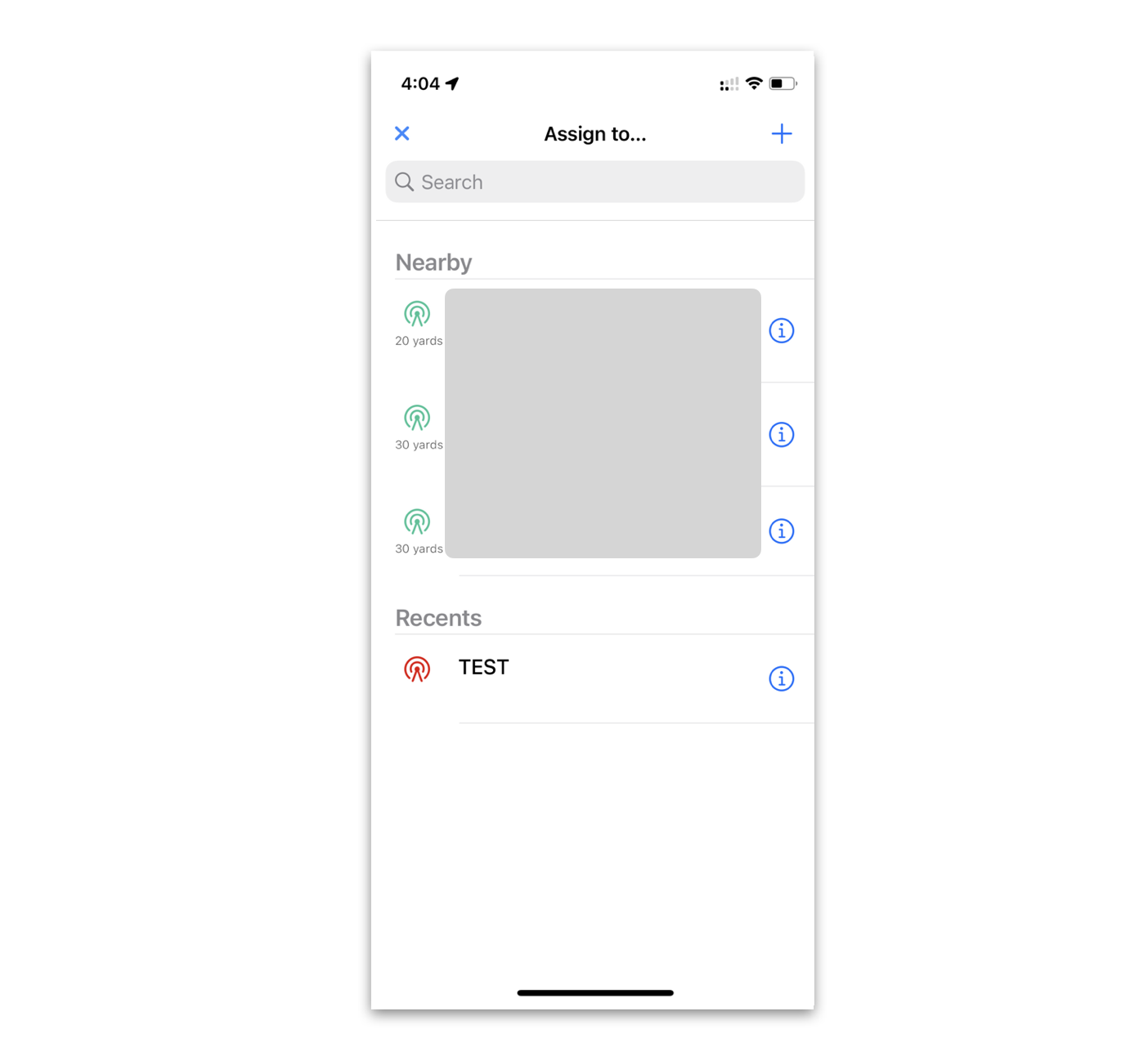
It'll ask you which site you wish to add the device too. Pick an appropriate site, or make a new one.
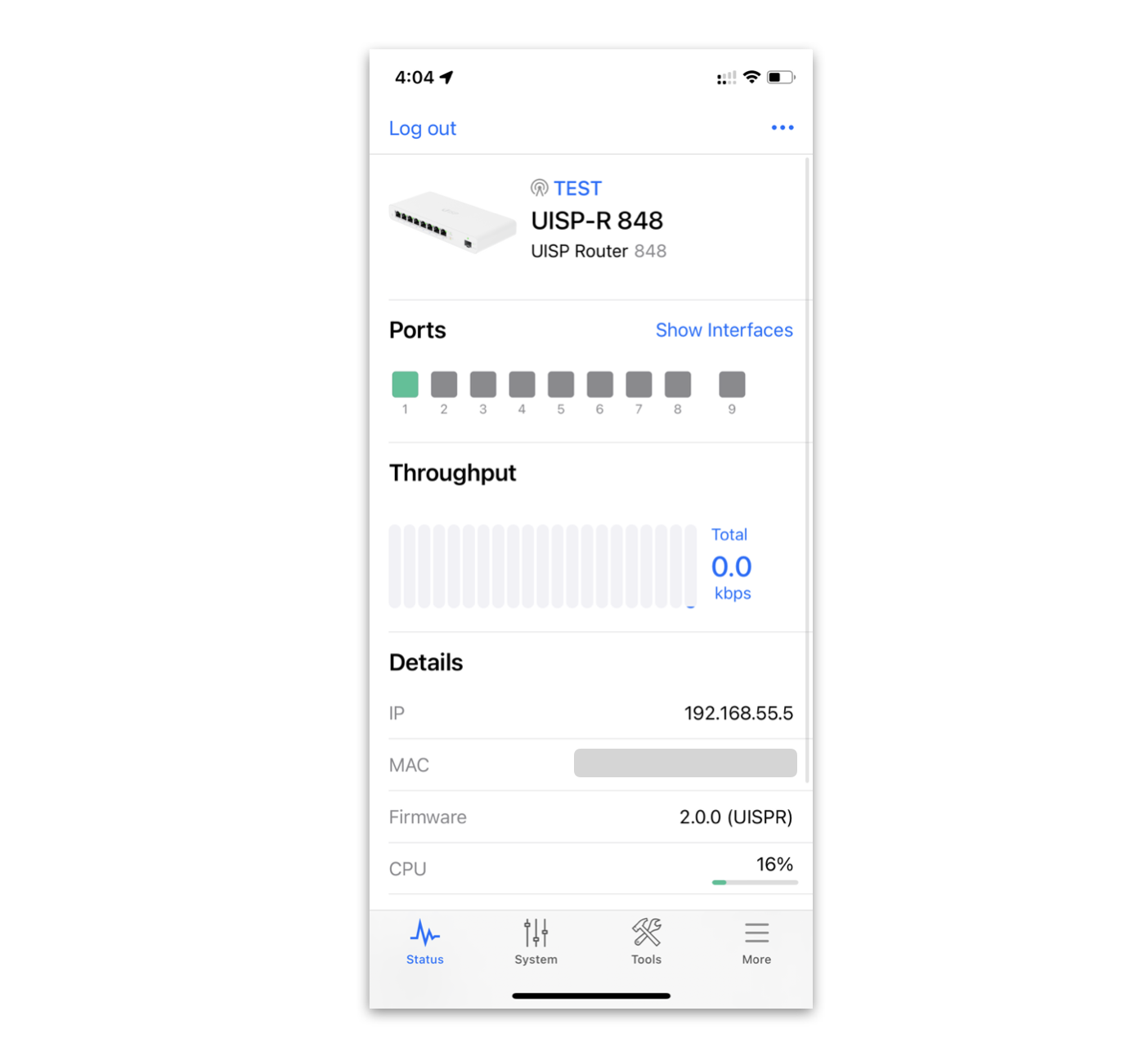
Once done, the UISP Router will be online and viewable in your UISP app or via the web in the UISP application.
About HostiFi
HostiFi provides hosting for Ubiquiti software platforms, with servers for UniFi and UISP. We also offer network consulting, with HostiFi Professional Services.

Get the Ubiquiti Top 20
Each month our team sifts through Ubiquiti news and content from around the web and delivers 20 of our favorite links to your inbox.
View recent issues
No spam. Unsubscribe anytime.
🤩
Discovered 3+ things that I did not know and will have a material impact on my business.
Newsletter Subscriber
🤩
All the info I want/need in a single clean thread! Perfect!
Newsletter Subscriber
🤩
Providing super valuable information to keep the community in the know. Awesome links page, Thank You.
Newsletter Subscriber