
UISP - How to migrate from UISP Cloud to HostiFi
Ubiquiti ended its free UISP Cloud Hosting on 1st January 2025. Here is how to move to HostiFi, or any other cloud provider offering UISP services.
If you want fast and reliable UISP hosting, check out HostiFi with expert support, regular backups, managed updates and prices from $19 per month.
To learn more about our hosting plans, create an account or book a free demo to get started.
Things to consider before migrating
- If possible, make sure all devices on the UISP server are online. Any devices that are not online, might not be able to be migrated.
- Self-hosted UISP servers (which includes HostiFi) don't currently support the Ubiquiti Payment Gateway. We are hoping this changes in the future, but for now, PayPal, Stripe and others are otherwise available.
- This migration process will also move over any CRM data and profiles, should it be required. If you don't use CRM, then you don't need to do anything.
Backing up
First, take a backup of the existing UISP server.
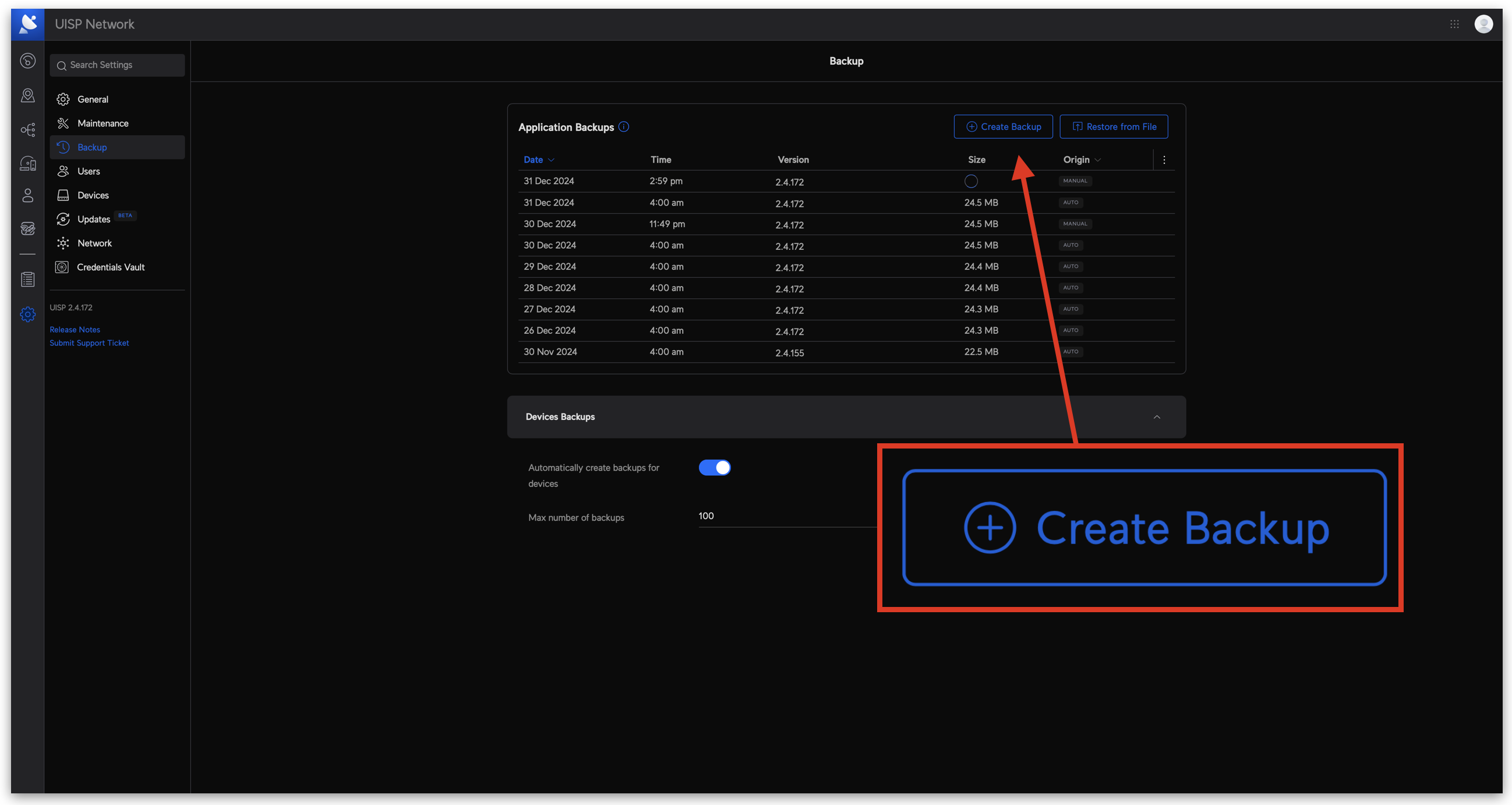
To do this, log into the existing UISP server, go to Settings > Backup and then click on Create Backup. Depending on the size of the UISP server, this might take between 30 seconds and 2 minutes.
Once the backup is created, click the three dots next to it, then click Download.
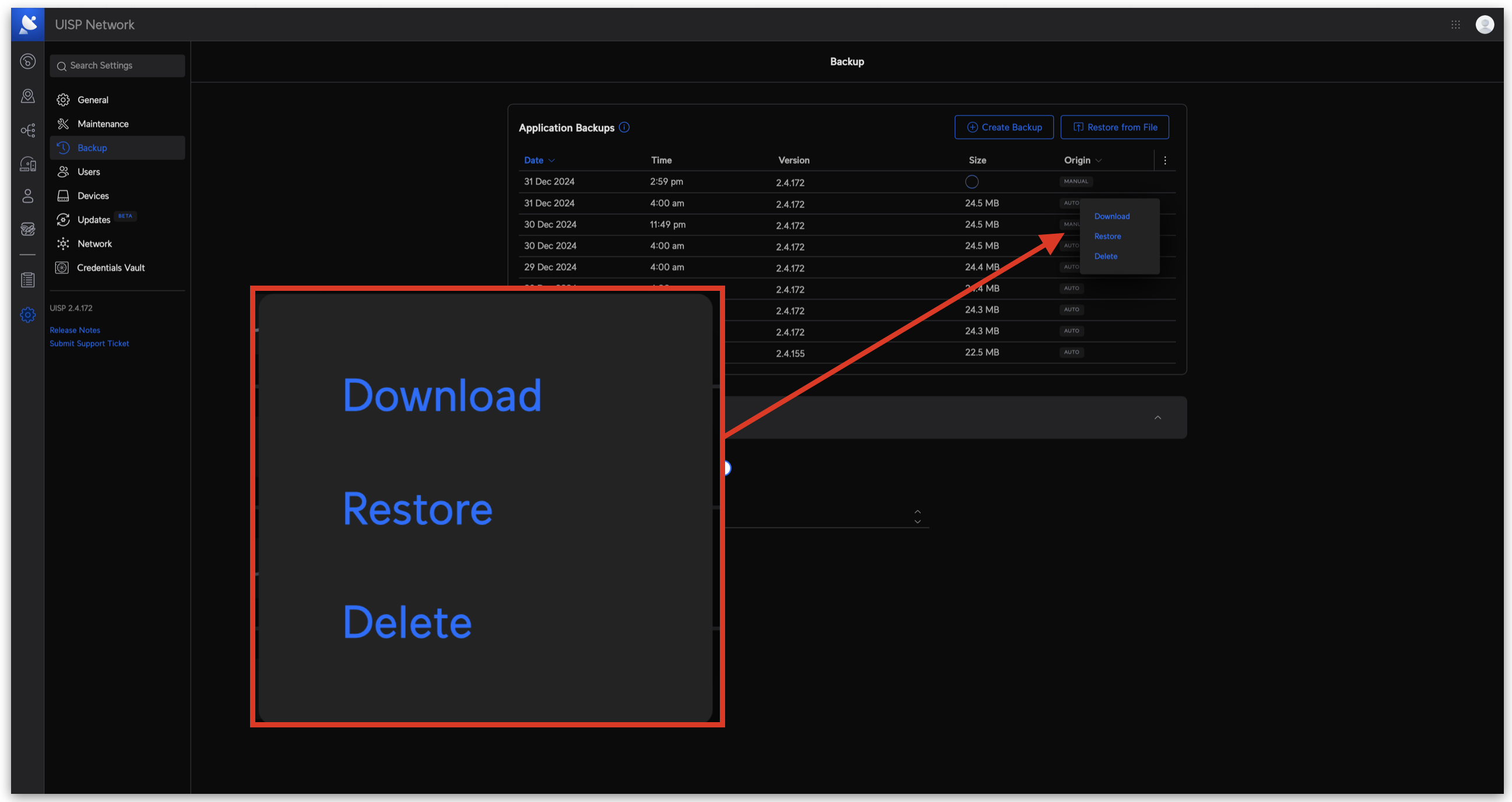
Once the backup is downloaded, move to the next step.
Restoring from backup
Next, is to restore the new UISP server from a backup.
To restore from the backup, log into your new UISP server, go to Settings > Backupand then click on Restore from File. Depending on the size of the UISP server, this might take between 30 seconds and 5 minutes.
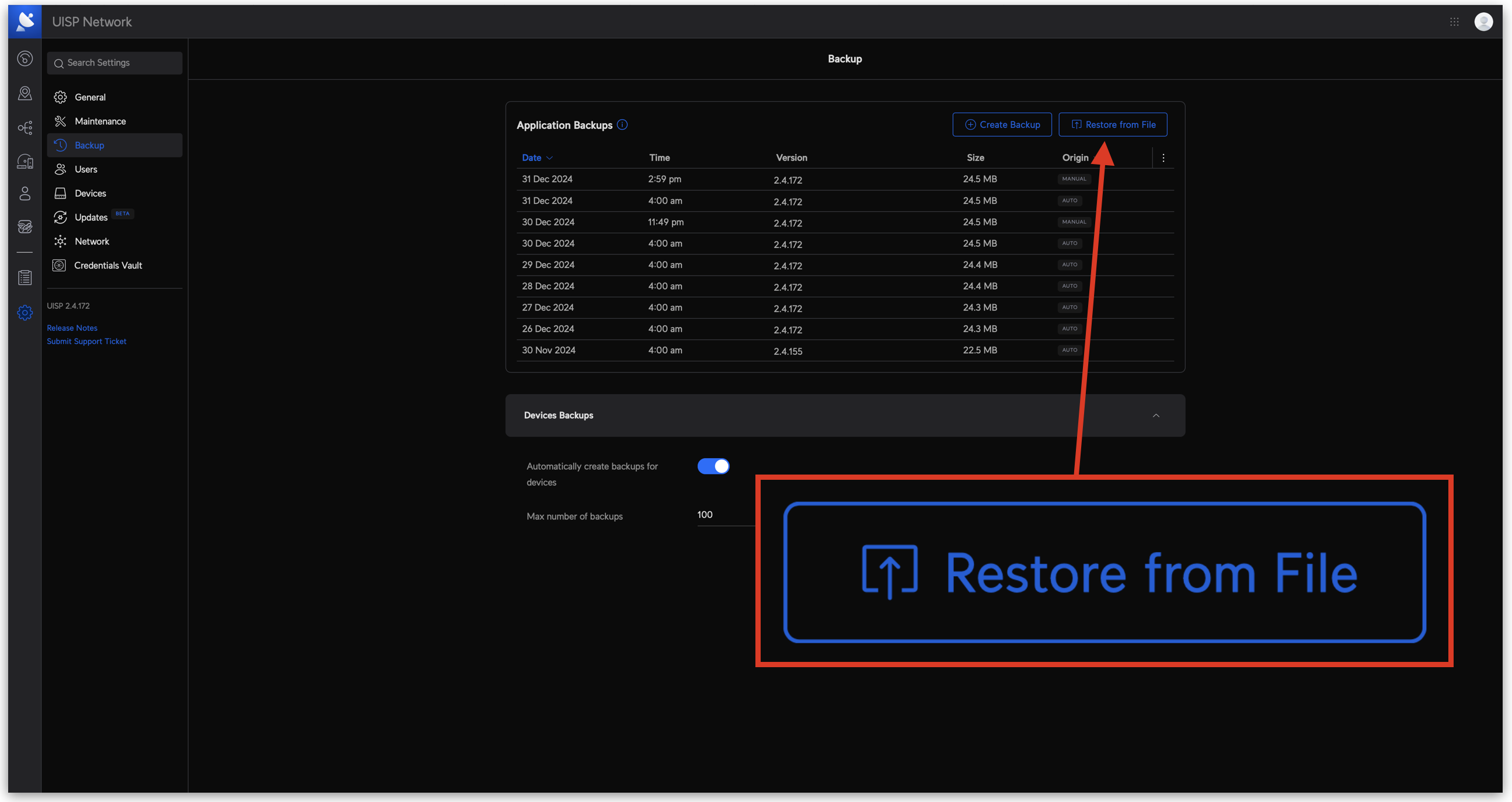
After a few minutes, refresh the page and log in with the credentials from the old UISP server. If you have issues, you can reset the UISP login password from the HostiFi portal, located at app.hostifi.com.
Once the server is restored, move to the next step.
Change the UISP hostname
This step is very important and if not changed, it can cause migration issues. Because the UISP server has been restored from a backup, it'll also inherit the old UISP hostname.
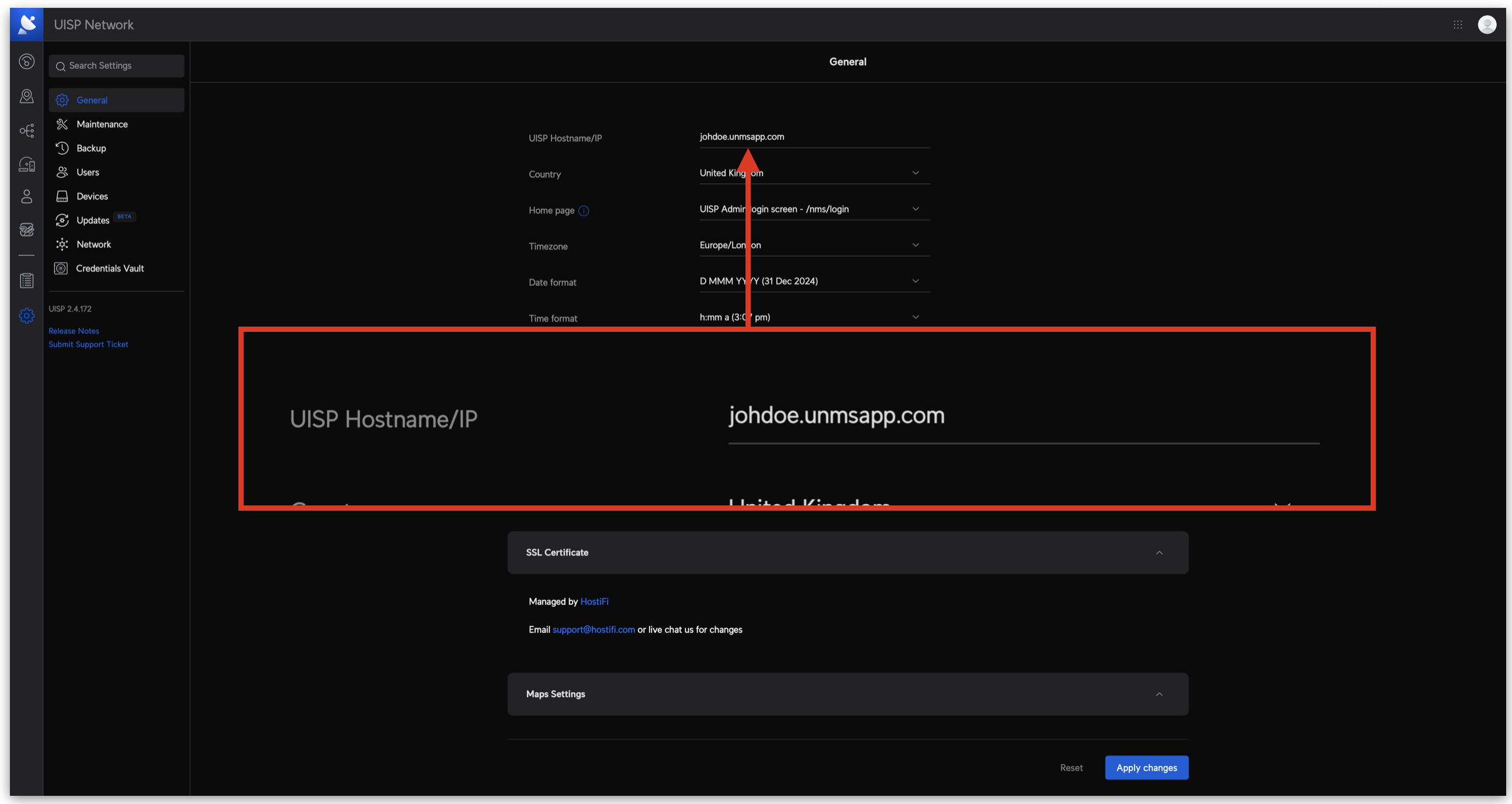
While this won't affect access for logging into the UISP server, it can affect how the UISP key works. Because we are coming from a Ubiquiti controlled UISP server, we can't use the domain supplied by them, as it ends in unmsapp.com or uisp.com.
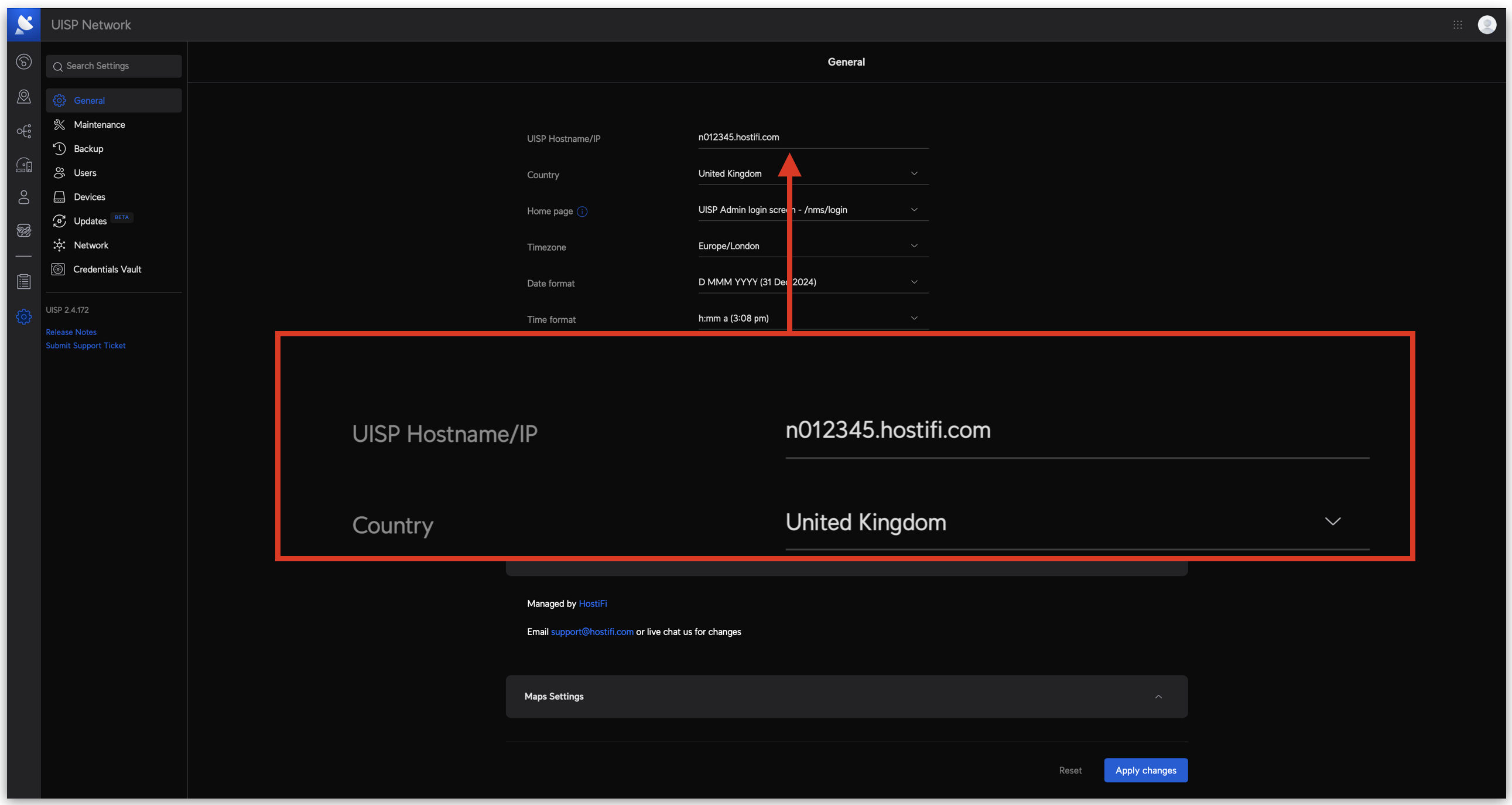
To change the hostname, log into your new UISP server, go to Settings > Generaland change the UISP hostname/IP to the one supplied by HostiFi, which will be in the format of n012345.hostifi.com.
Migration mode
Next is to start the migration. Conveniently, UISP has an easy to use migration tool built right in. Once you have your new UISP server up and running with HostiFi, the process is pretty seamless.
Log into your old UISP Server. Then, navigate to Settings > Devices then scroll down to Migration.
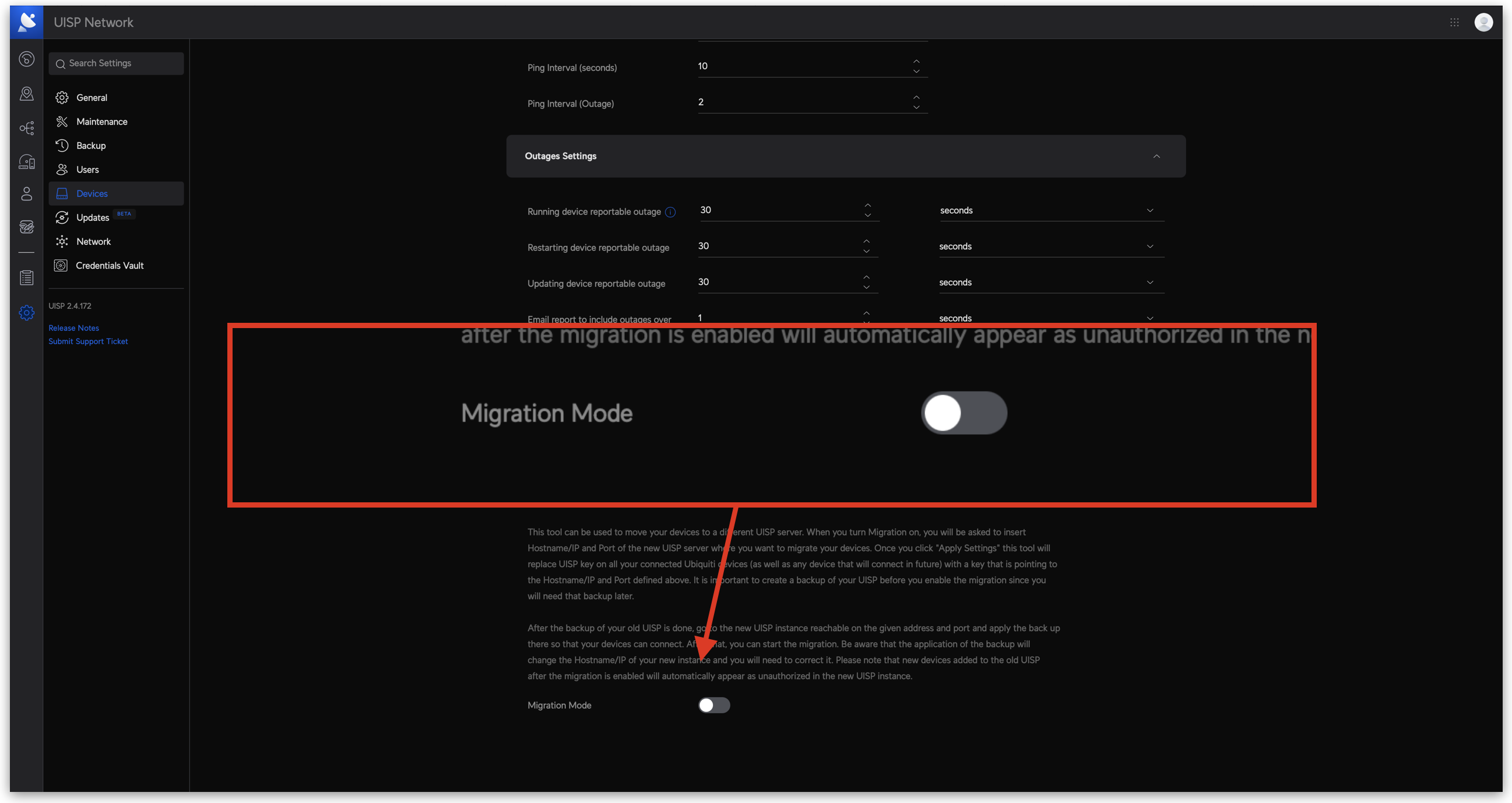
Next enable the following settings:
- Turn on Migration Mode
- Leave Force Mode disabled
- Turn on With Backup
- Enter in the hostname for the new UISP server, without https:// before or anything after either. It should be in the format of n012345.hostifi.com. Replace this with your new UISP server hostname.
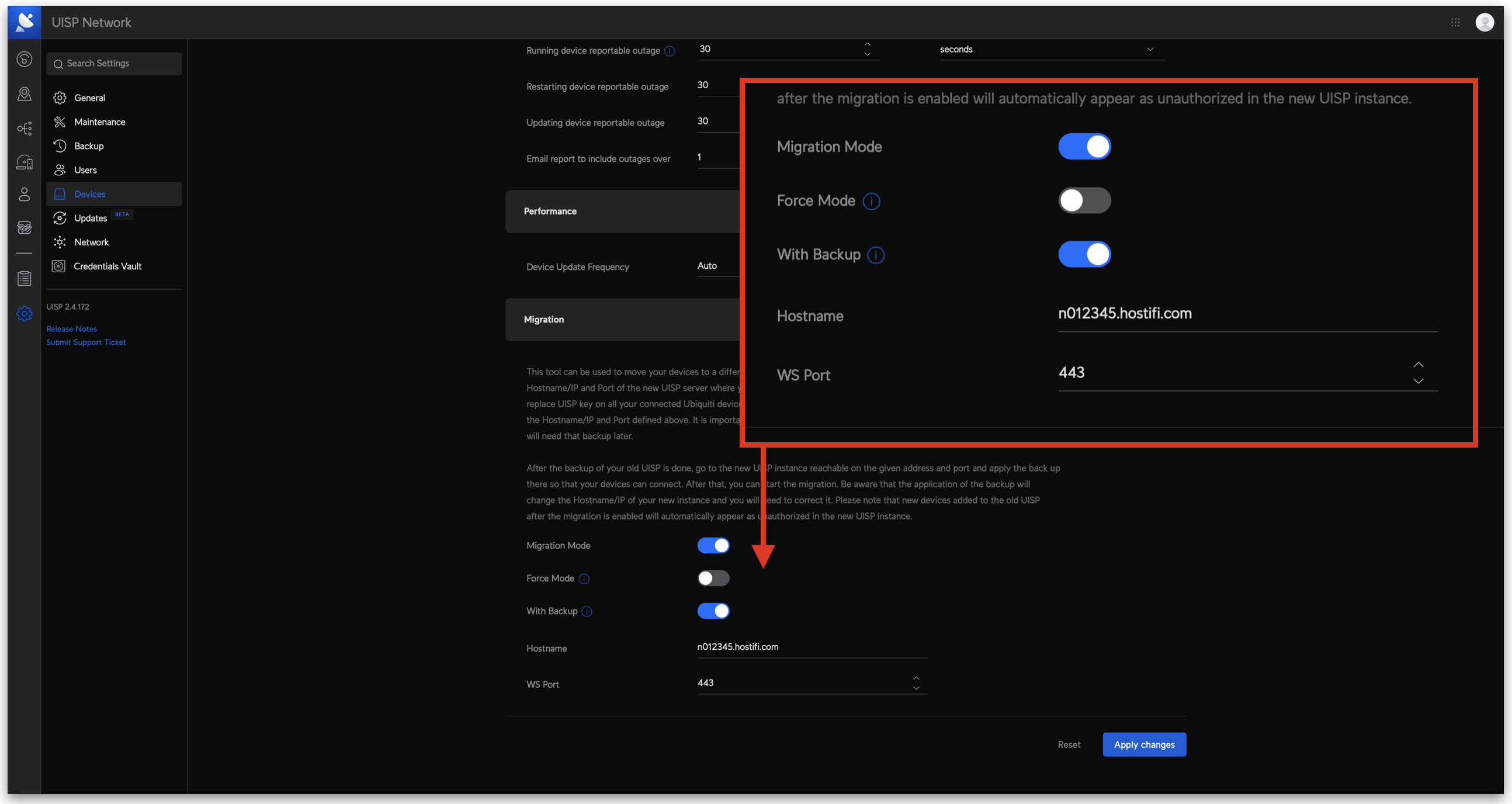
Once done, click on Apply changes.
Log into your new UISP server and check all the devices are coming back online. This process can take between 1-10 minutes, depending on the individual devices.
Finishing up
Once you are happy all the devices are moved over to the new UISP server, the existing server can be deleted.
About HostiFi
HostiFi provides hosting for Ubiquiti software platforms, with servers for UniFi and UISP. We also offer network consulting, with HostiFi Professional Services.

Get the Ubiquiti Top 20
Each month our team sifts through Ubiquiti news and content from around the web and delivers 20 of our favorite links to your inbox.
View recent issues
No spam. Unsubscribe anytime.
🤩
Discovered 3+ things that I did not know and will have a material impact on my business.
Newsletter Subscriber
🤩
All the info I want/need in a single clean thread! Perfect!
Newsletter Subscriber
🤩
Providing super valuable information to keep the community in the know. Awesome links page, Thank You.
Newsletter Subscriber