
UniFi - Getting Started with Cloud Adoption
Learn how to get any UniFi device adopted to HostiFi or any other cloud hosted UniFi Network Controller. This covers access points, switches and USG device.
NOTE: This guide won't work for the new UXG Pro, for instructions on how to get that device adopted to HostiFi, please see our guide here.
If you want fast and reliable UniFi hosting, check out HostiFi with expert support, regular backups, managed updates and prices from $19 per month.
To learn more about our hosting plans, create an account or book a free demo to get started.
Finding the device IP address
The first step is to find the device IP address, for this we can our DHCP leases on our gateway or we can use a discovery tool. See this guide for our recommended discovery tools for your operating system.
Once you have the IP address of the UniFi device you wish to adopt to HostiFi or any other cloud hosted UniFi Network Controller, we need to SSH into it.
SSH into device
macOS
On macOS, open up the Terminal application

Type in ssh <ubnt>@<ip-address> then hit return
ssh <ubnt>@<ip-address>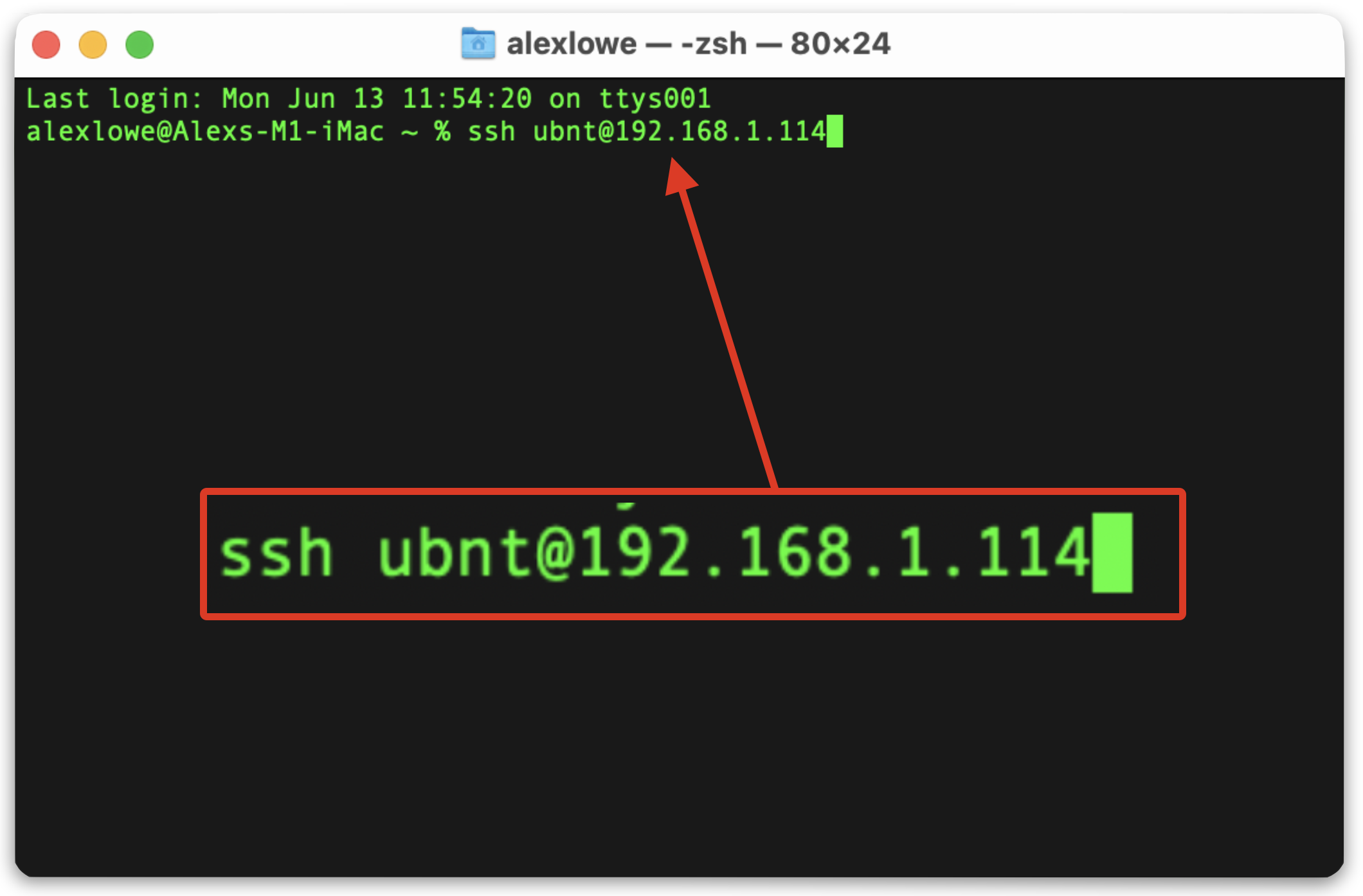
Next, click the return key and the device will ask for a password.
Username: ubnt
Password: ubnt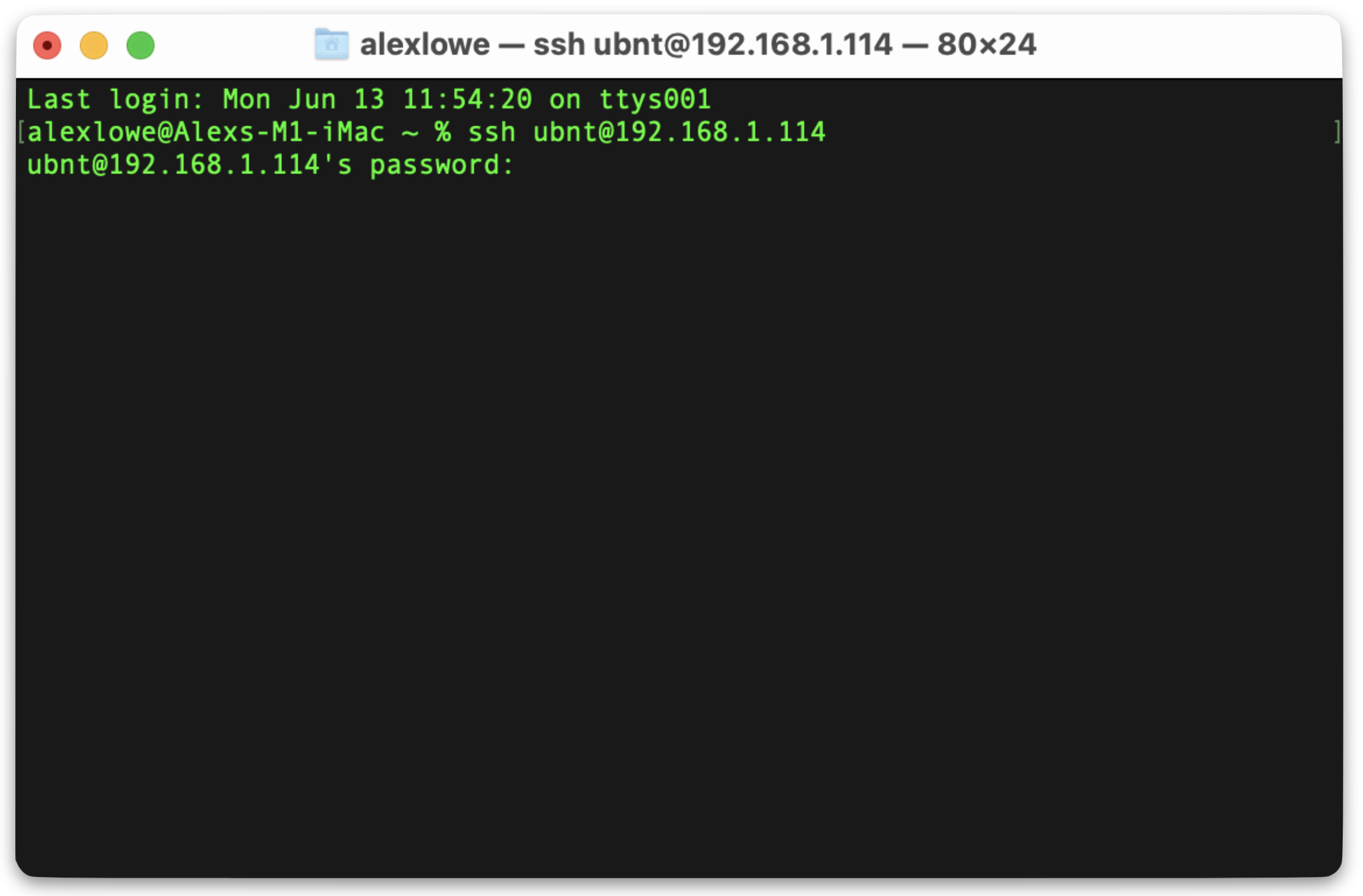
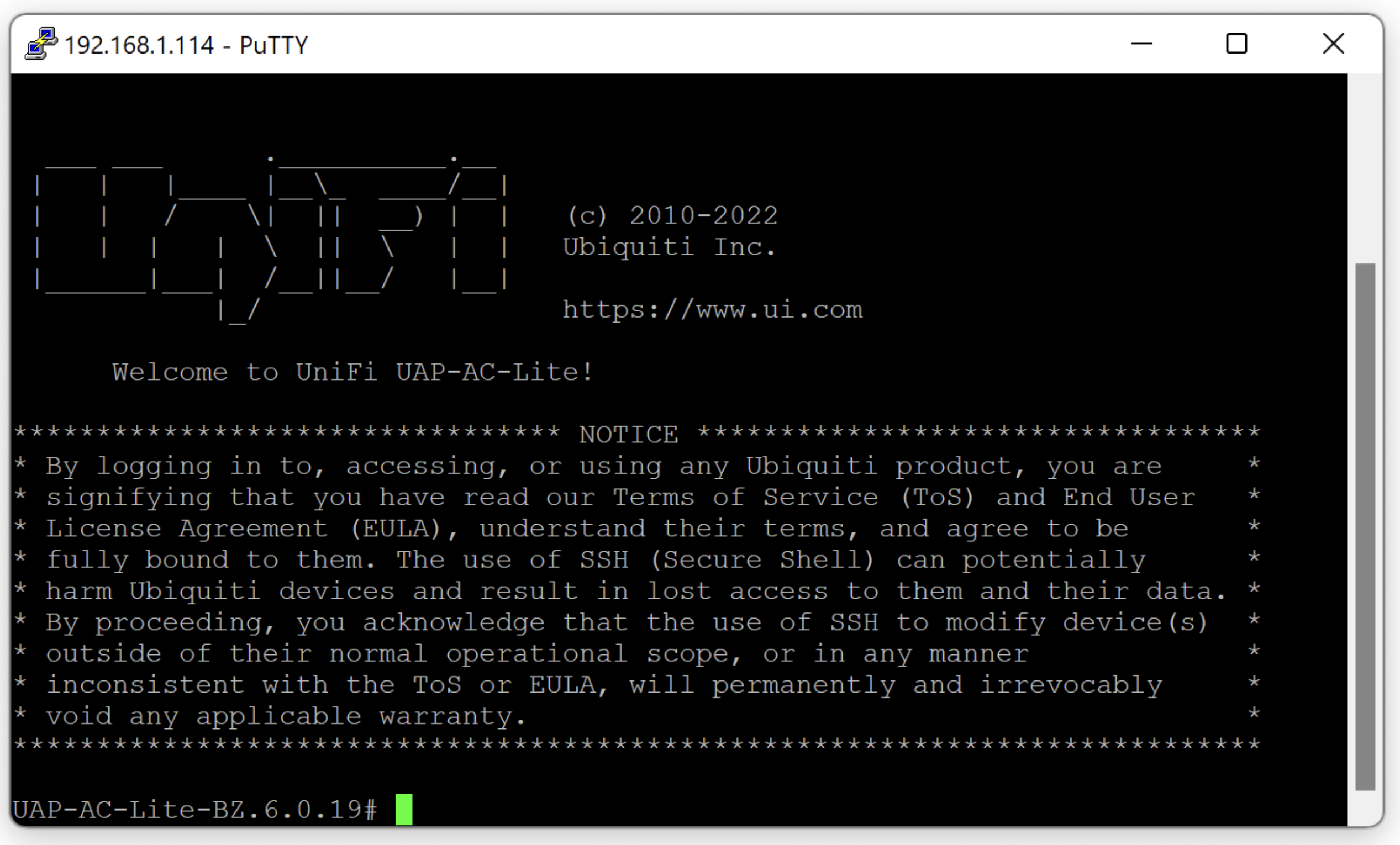
Once logged in you'll be greeted with the welcome message. Please see the 'Getting device adopted' section for the next steps.

Windows
Open up PuTTY, as Windows does not have a built in SSH client.
See this guide on how to install PuTTY on Windows

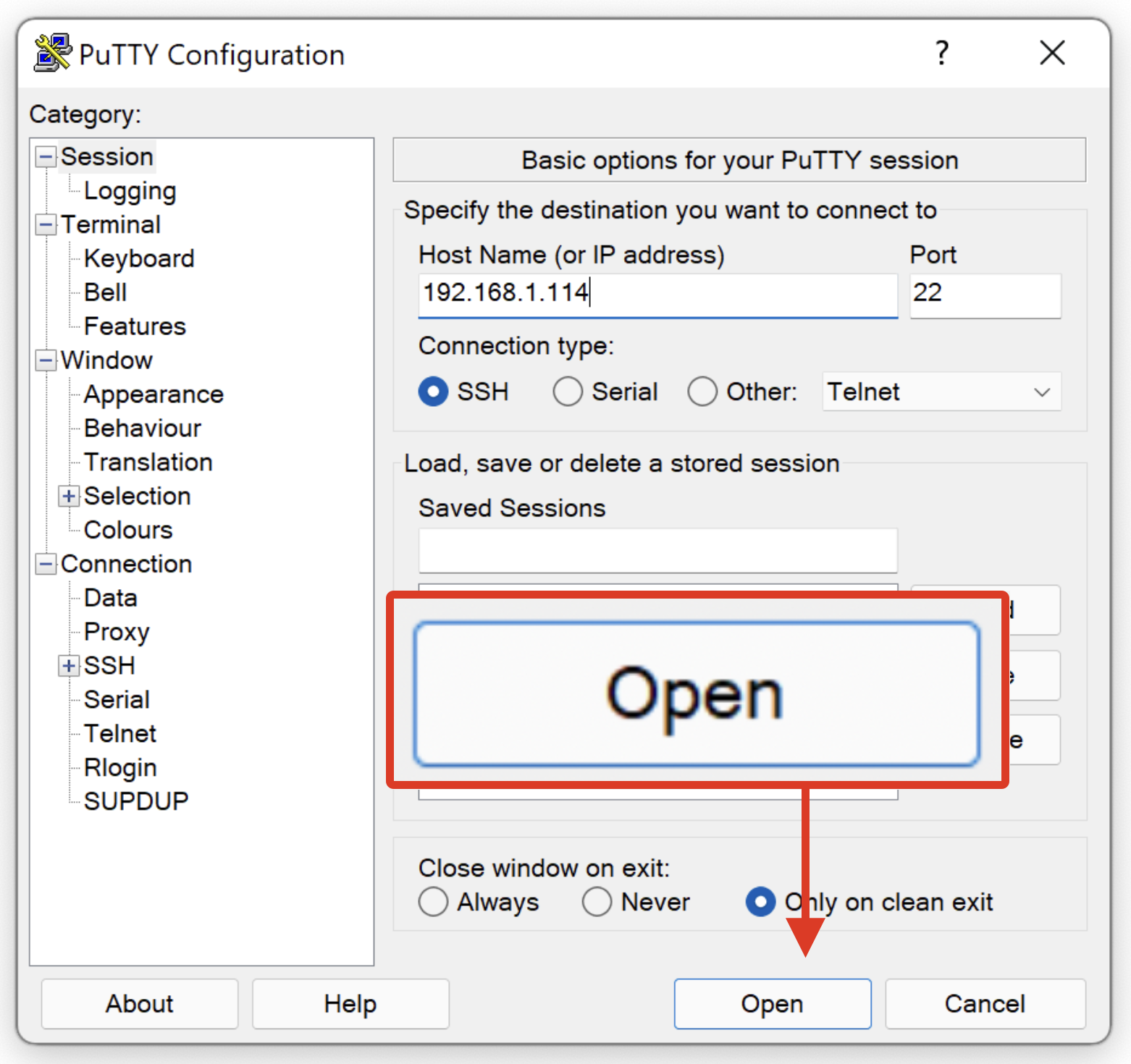
Type in the IP address for your UniFi device
Next click 'Open'
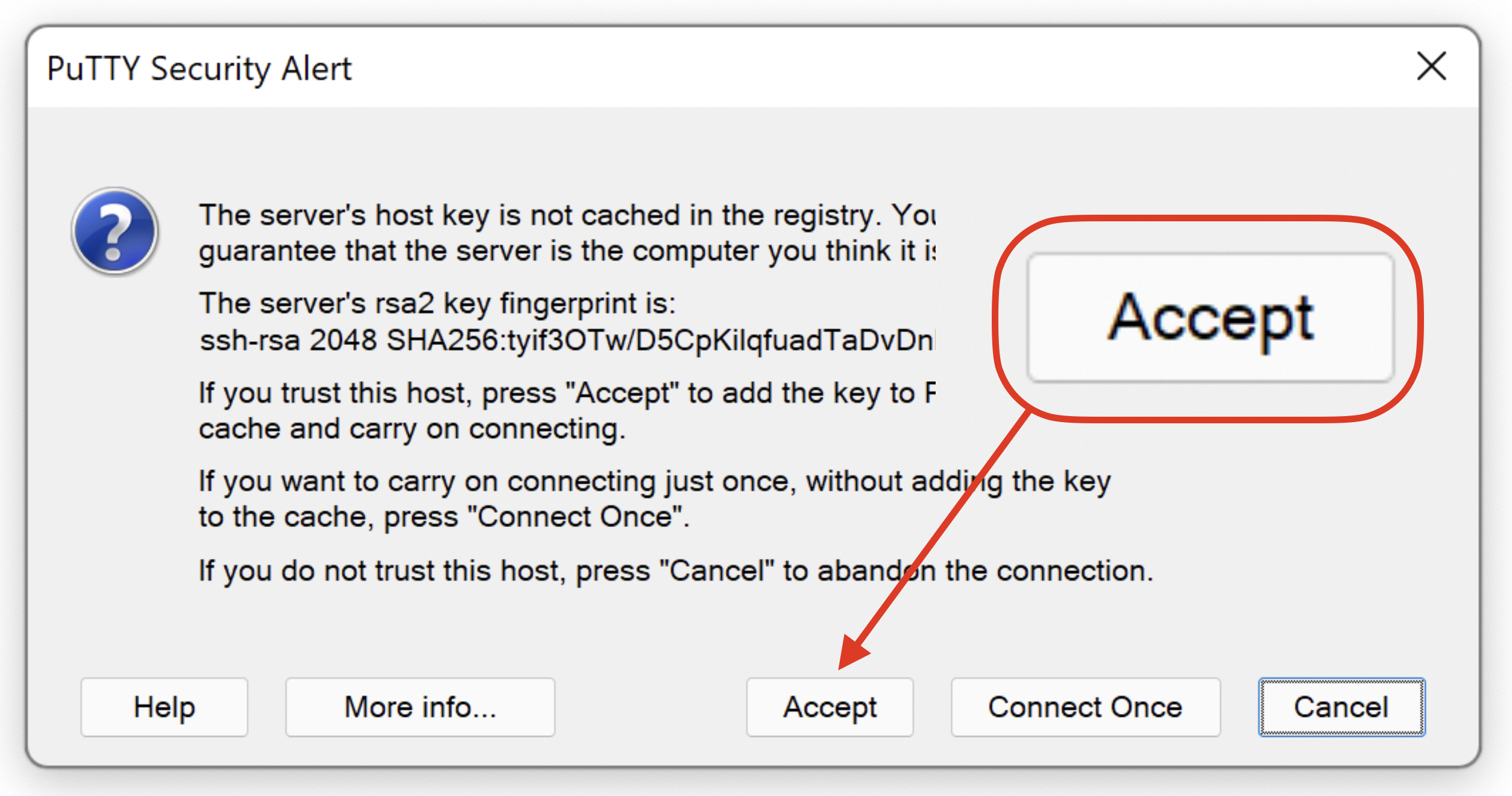
After that, PuTTY will display a security message about the rsa2 fingerprint. On this window, press 'Accept' to allow the connection
Next the device will ask for a username, which is 'ubnt'
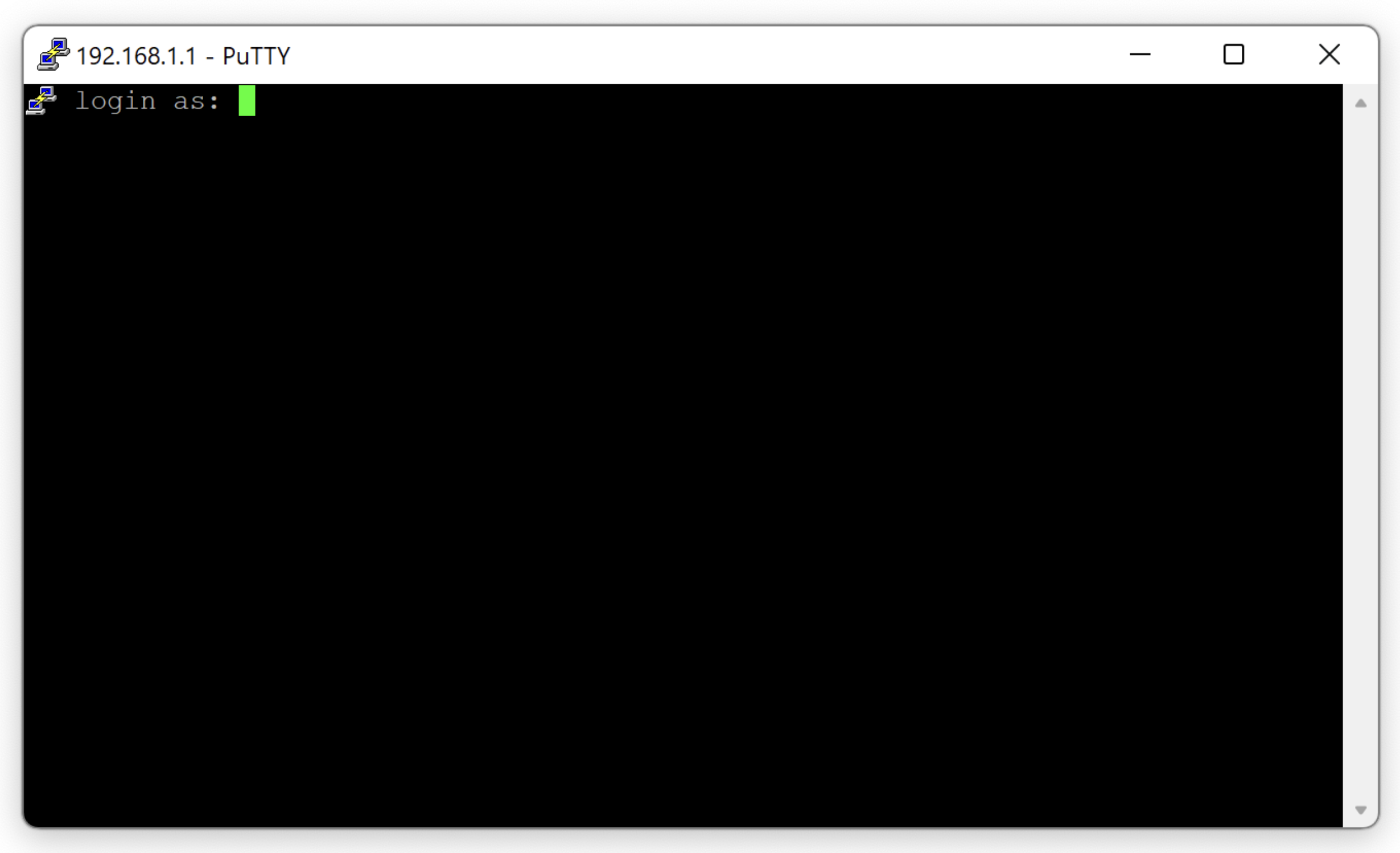
Username: ubnt
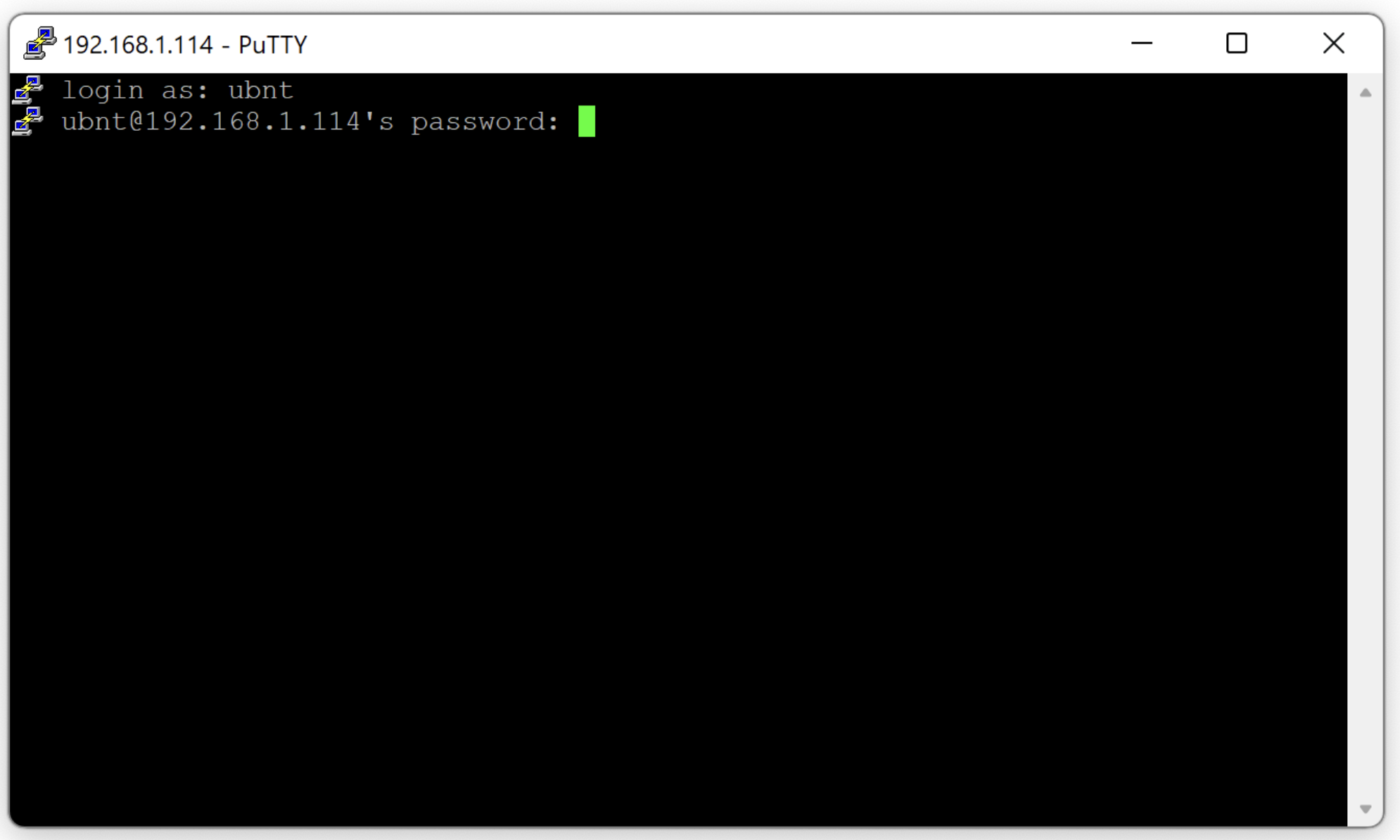
Password: ubnt
The device will then ask for a password, which is 'ubnt'
⚠️ Note: The password will not appear in the PuTTY window as you type it
Once logged in you'll be greeted with the welcome message. Please see the 'Getting device adopted' section for the next steps.
Getting the device adopted
Once you have logged into your UniFi device using the steps above, the next step is to tell the device what controller to talk to. This is achieved via a set-inform command. It is imperative to use this format below to ensure proper communication between the UniFi device and the controller.
set-inform http://your-server:8080/informMake sure to use http:// and :8080/inform, which is the protocol and port used for device communication. Always use a DNS name instead of an IP address, that way devices will not disconnect if the IP address of the controller ever changes.
⚠️ Note: These steps won't work for the new UXG Pro, for instructions on how to get that device adopted to HostiFi, please see our guide here.
Setting the set-inform
Using the open window for SSH, type in the set-inform URL, you can locate your HostiFi hostname from the portal, at app.hostifi.com.

The device will show up for adoption on ALL sites in your UniFi controller, use the sites drop down in the upper right corner to switch to the site you want the device to be adopted in, then click "Adopt".
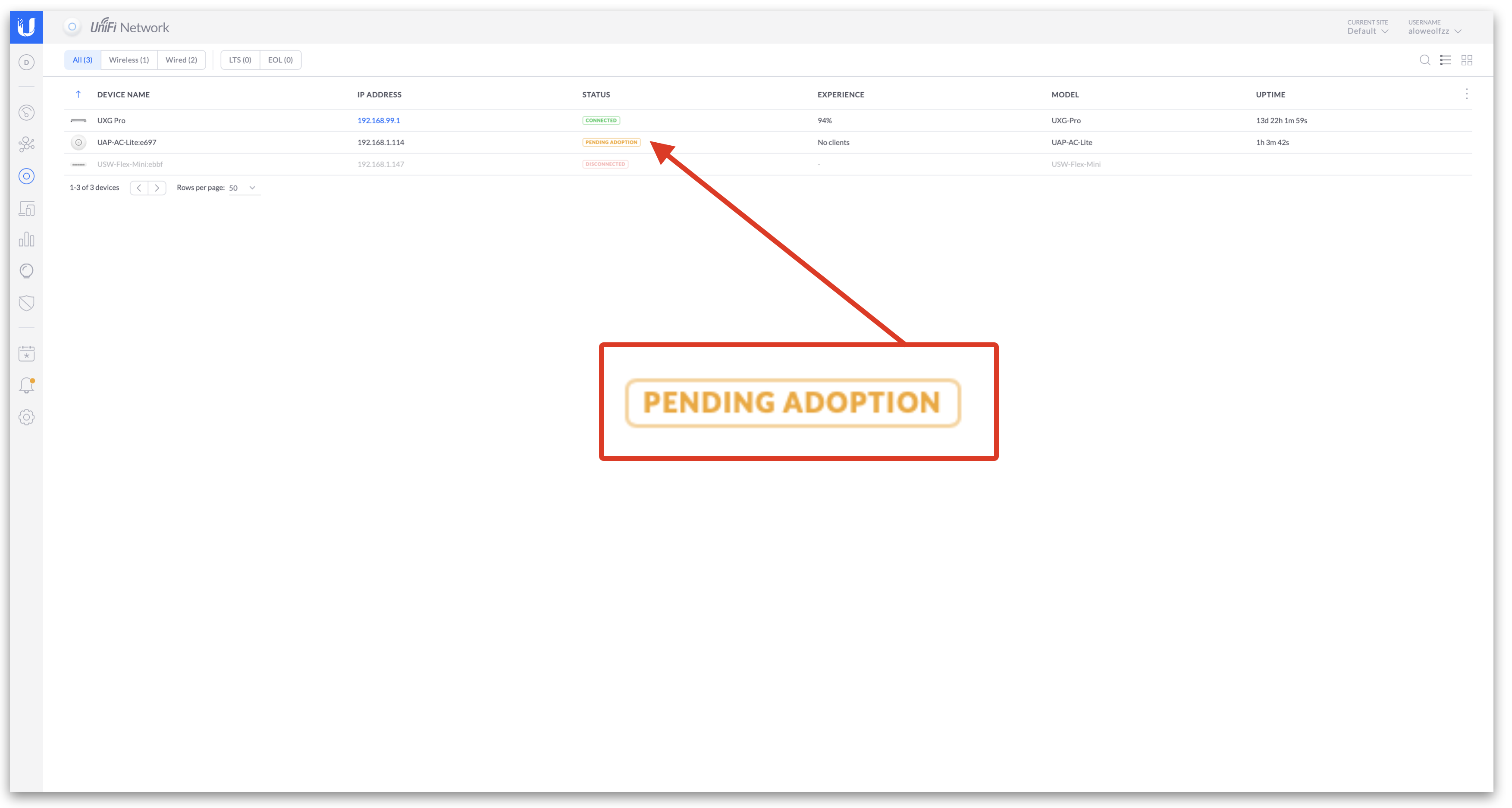
The device status should then change quickly from "Pending" to "Adopting".

The device will receive its new configuration from UniFi, then the status will change to "Connected".

From there you can upgrade the device firmware, and begin configuring your network under Settings.
Video
About HostiFi
HostiFi provides hosting for Ubiquiti software platforms, with servers for UniFi and UISP. We also offer network consulting, with HostiFi Professional Services.

Get the Ubiquiti Top 20
Each month our team sifts through Ubiquiti news and content from around the web and delivers 20 of our favorite links to your inbox.
View recent issues
No spam. Unsubscribe anytime.
🤩
Discovered 3+ things that I did not know and will have a material impact on my business.
Newsletter Subscriber
🤩
All the info I want/need in a single clean thread! Perfect!
Newsletter Subscriber
🤩
Providing super valuable information to keep the community in the know. Awesome links page, Thank You.
Newsletter Subscriber