
UniFi - How to change the UniFi OS Server Owner after upgrading from UniFi Network Server
When a HostiFi UniFi Network Server has been automatically upgraded by HostiFi to UniFi OS Server, some settings will need addressing after the migration has been completed. This is mainly due to how Ubiquiti has changed how administrators users are managed and created, compared to the outgoing UniFi Network Server.
UniFi OS Server introduces the concepts of Owners, much like with UniFi Cloud Consoles. This means if you migrate manually or HostiFi does an automatic update, there needs to be a user on the server that will become the owner. This user is responsible for billing (CyberSecure, not HostiFi billing) and is the only one who can transfer ownership to someone else).
Since our users and customers would often have many users in the UniFi user list, it would never have been 100% clear who to assign the Owner status to. Instead, we create a new user called admin, which automatically becomes the new Owner of the UniFi OS Server.
Because this new admin user won't be associated with any Ubiquiti SSO account, it is recommended to transfer the owner from admin to your own Ubiquiti SSO account. This will make future maintenance and administration much easier.
How to change the UniFi OS Server Owner
Once your UniFi instance has been upgraded from UniFi Network Server to UniFi OS Server, log into the server using your temporary credentials found at app.hostifi.com
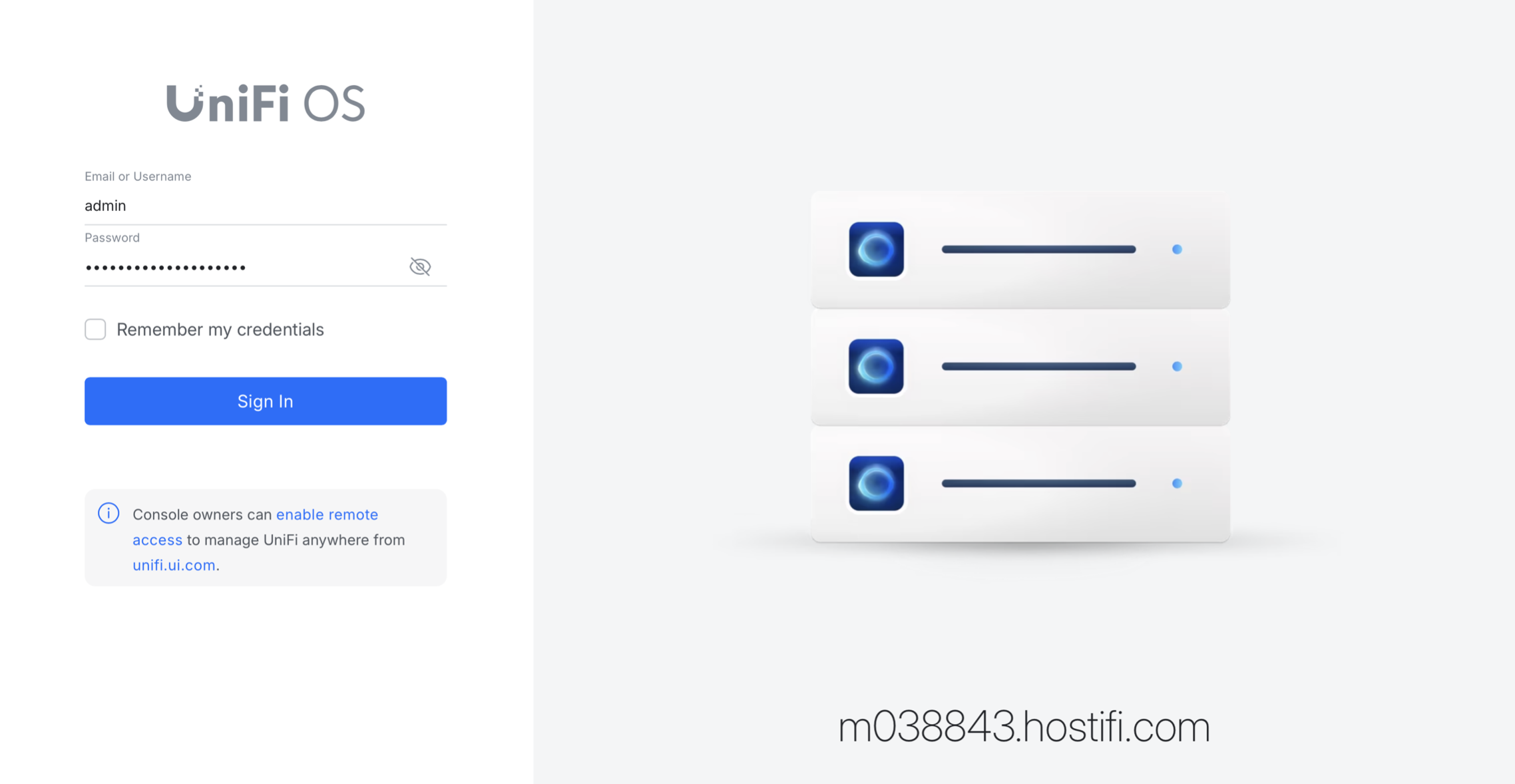
Note: If your temporary credentials from app.hostifi.com don't work, please let us know and we can fix this issue.
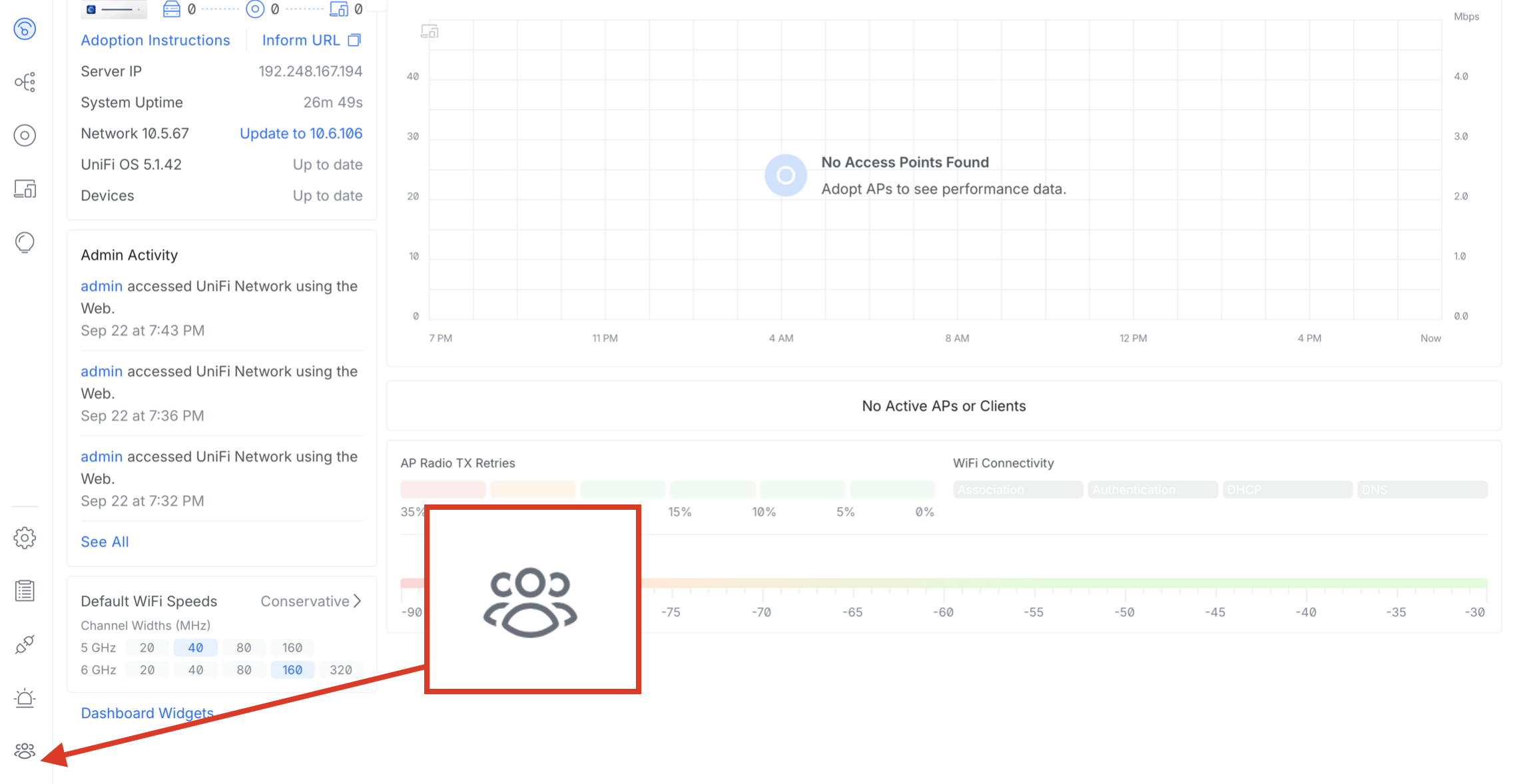
Make sure you are logged in as the admin user. Then, click on the People icon
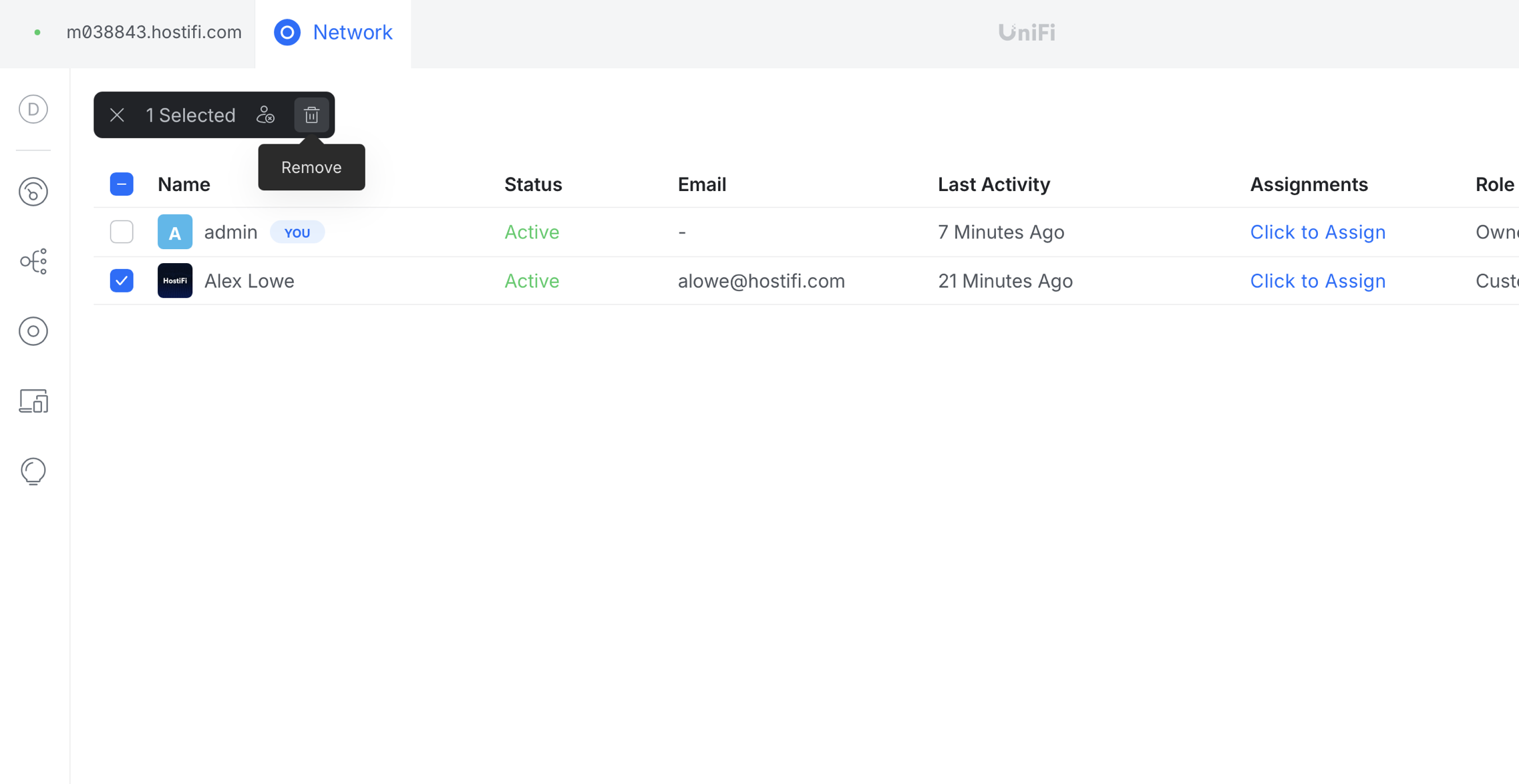
Next, delete the existing user that you wish to use as the new owner account
The existing user needs to be deleted as Ubiquiti requires Remote Access to be enabled to transfer the ownership and two users with the same Ubiquiti SSO account cannot co-exist on the same UniFi OS Server. Instead, log into the new admin account with your Ubiquiti SSO account.
Next, remove the user that is linked to your Ubiquiti SSO account from the list. In my example, admin is my temporary owner and alowe@hostifi.com is my Ubiquiti SSO account.
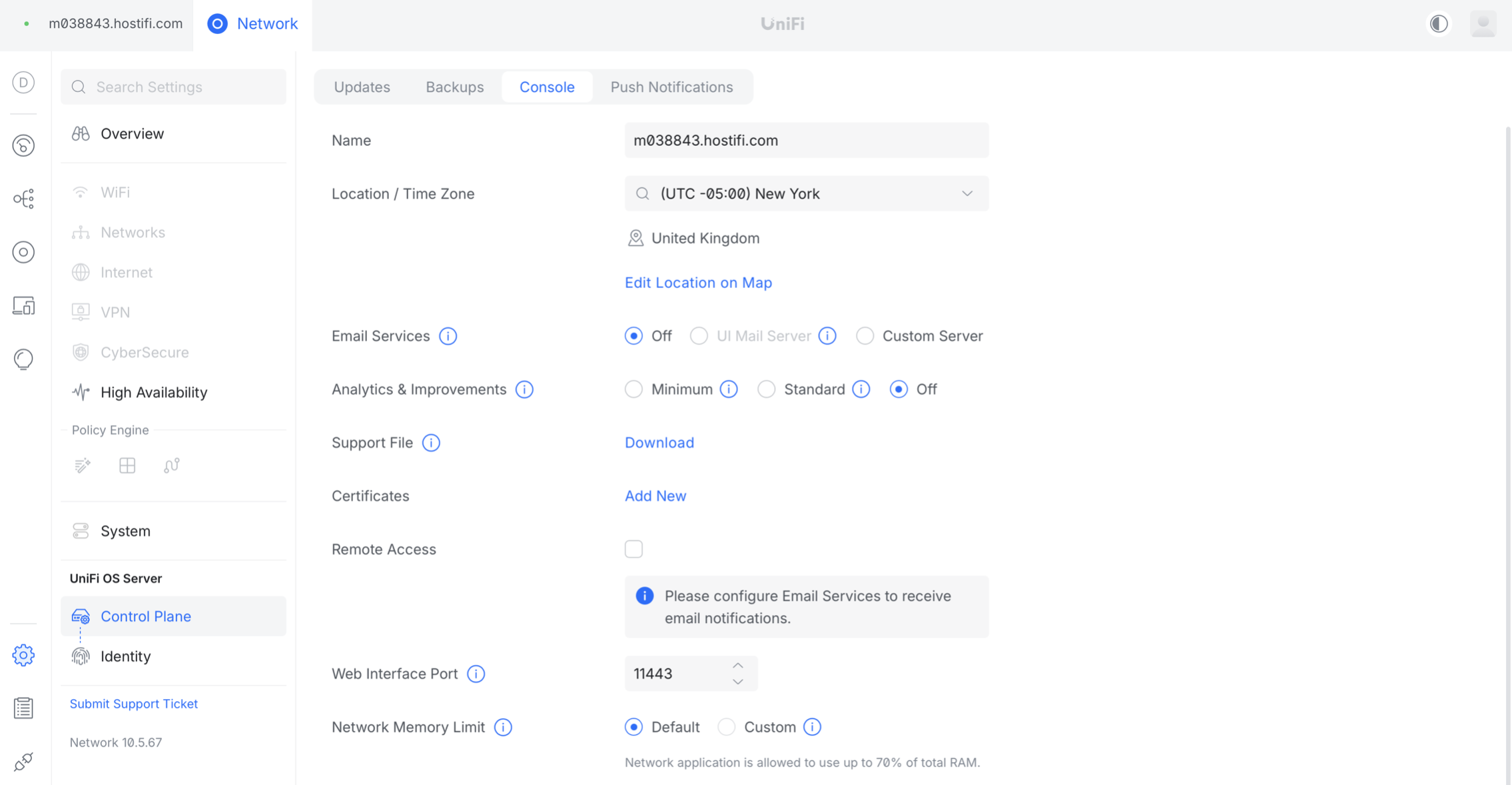
Next, click on Settings > Control Plane > Console and tick the box for Remote Access
Enter in your Ubiquiti SSO credentials and 2FA code and click login
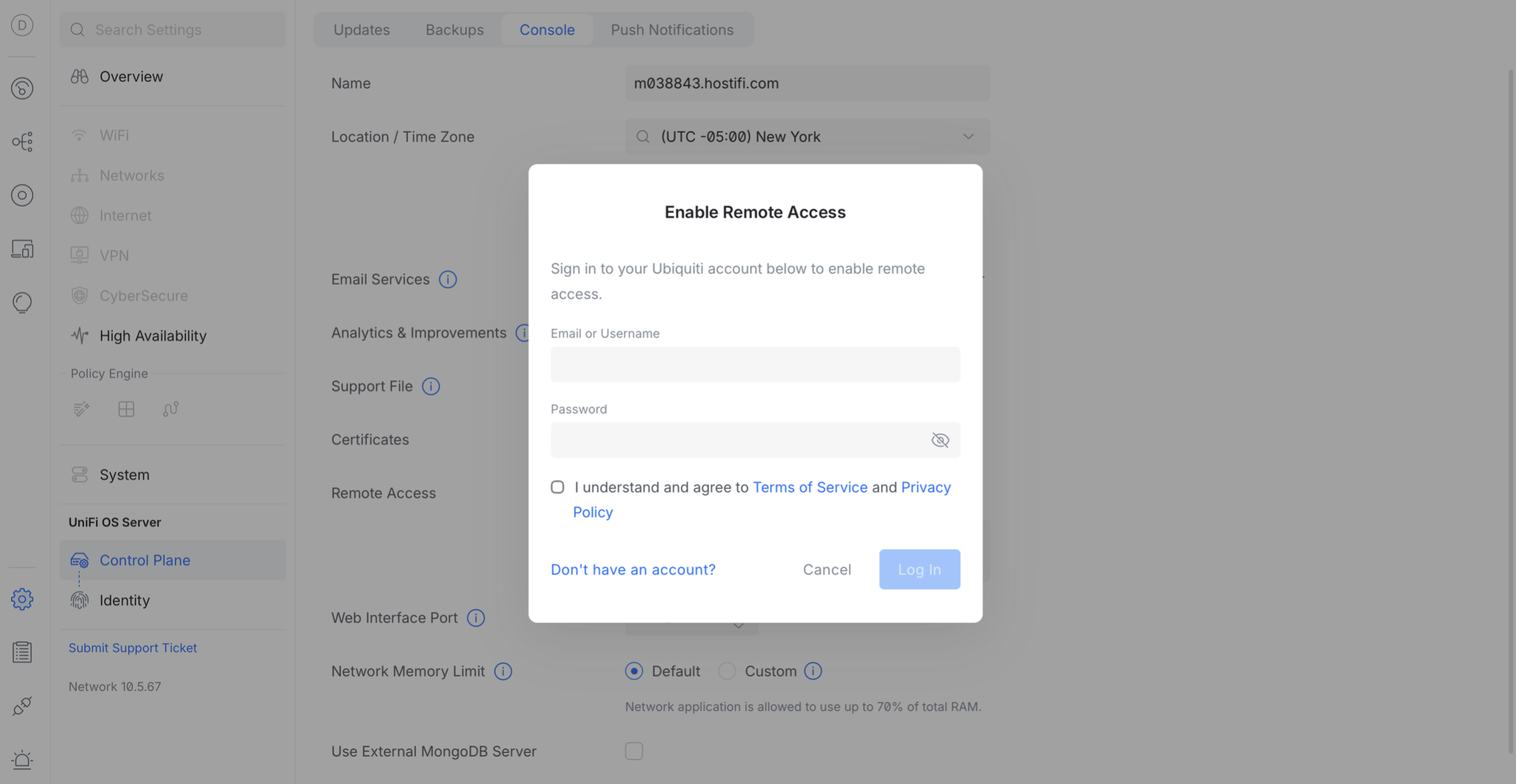
Click the People icon and check to see if the previous admin account has now been converted to your Ubiquiti SSO Account with Owner next to it
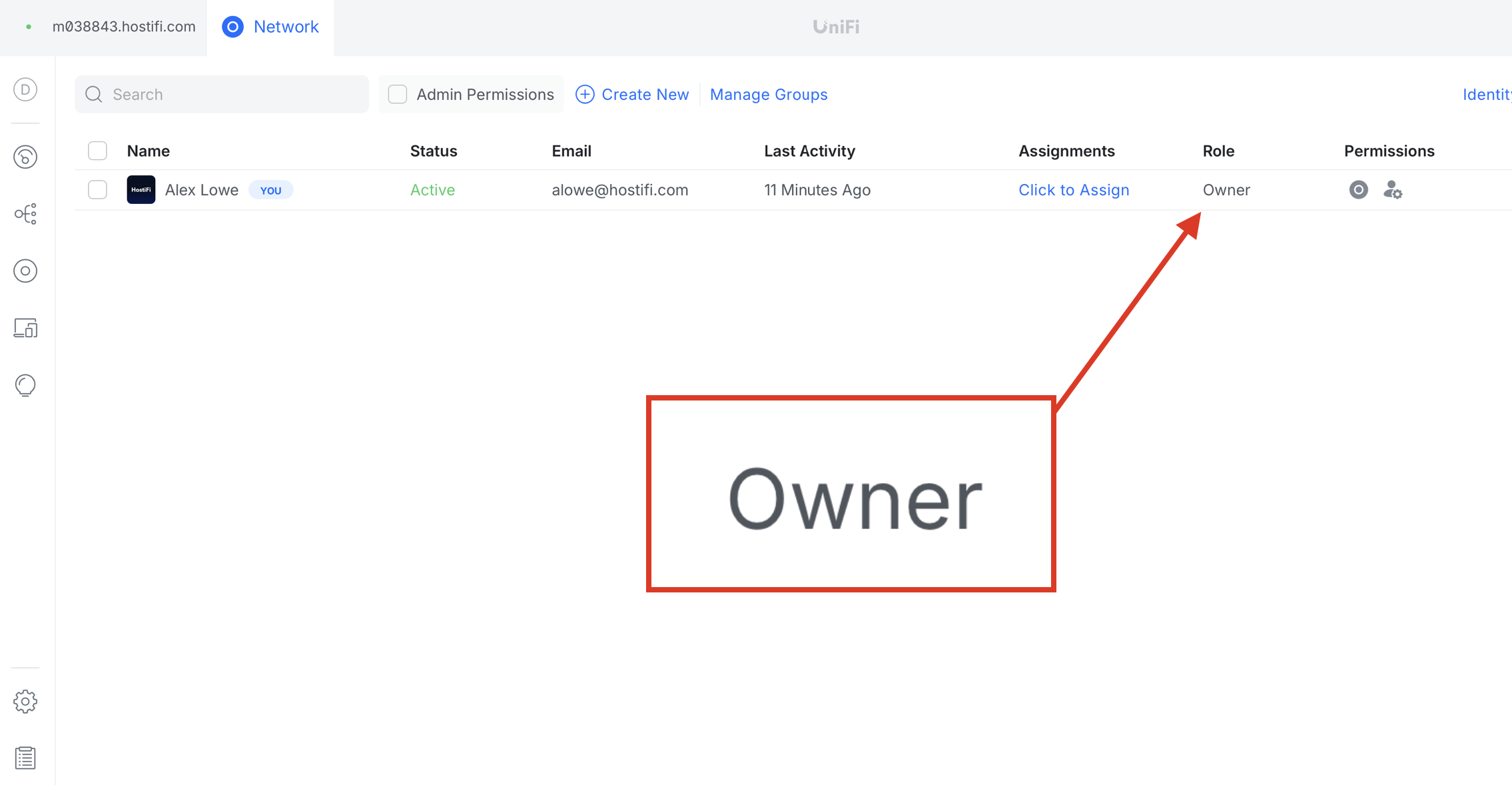
All done, you are now the owner of your UniFi OS Server!
About HostiFi
HostiFi provides hosting for Ubiquiti software platforms, with servers for UniFi and UISP. We also offer network consulting, with HostiFi Professional Services.

Get the Ubiquiti Top 20
Each month our team sifts through Ubiquiti news and content from around the web and delivers 20 of our favorite links to your inbox.
View recent issues
No spam. Unsubscribe anytime.
🤩
Discovered 3+ things that I did not know and will have a material impact on my business.
Newsletter Subscriber
🤩
All the info I want/need in a single clean thread! Perfect!
Newsletter Subscriber
🤩
Providing super valuable information to keep the community in the know. Awesome links page, Thank You.
Newsletter Subscriber