
UniFi - How to fix UniFi Content Filtering not working
If you've enabled Work or Family content filtering in UniFi but the filtering doesn't appear to be working this article will show you how to troubleshoot it.
If you want fast and reliable UniFi hosting, check out HostiFi with expert support, regular backups, managed updates and prices from $19 per month.
To learn more about our hosting plans, create an account or book a free demo to get started.
Hire us to fix UniFi Content Filtering for you! hostifi.com/pro
Ubiquiti has partnered with cleanbrowsing.org to provide the Content Filtering service in UniFi.
We know this because it is mentioned here: "we partner with Ubiquiti to integrate our free services as a basic layer of their filtering platform"
And it can be verified that when content filtering is enabled you are using cleanbrowsing.org DNS servers.
How to check if Content Filtering is working on your device
So, with this in mind, an easy way to test if the content filtering is enabled on your device is to check which DNS servers the device is using by going to dnsleaktest.com or a similar website.
Run the Standard Test and you should see an output similar to this:
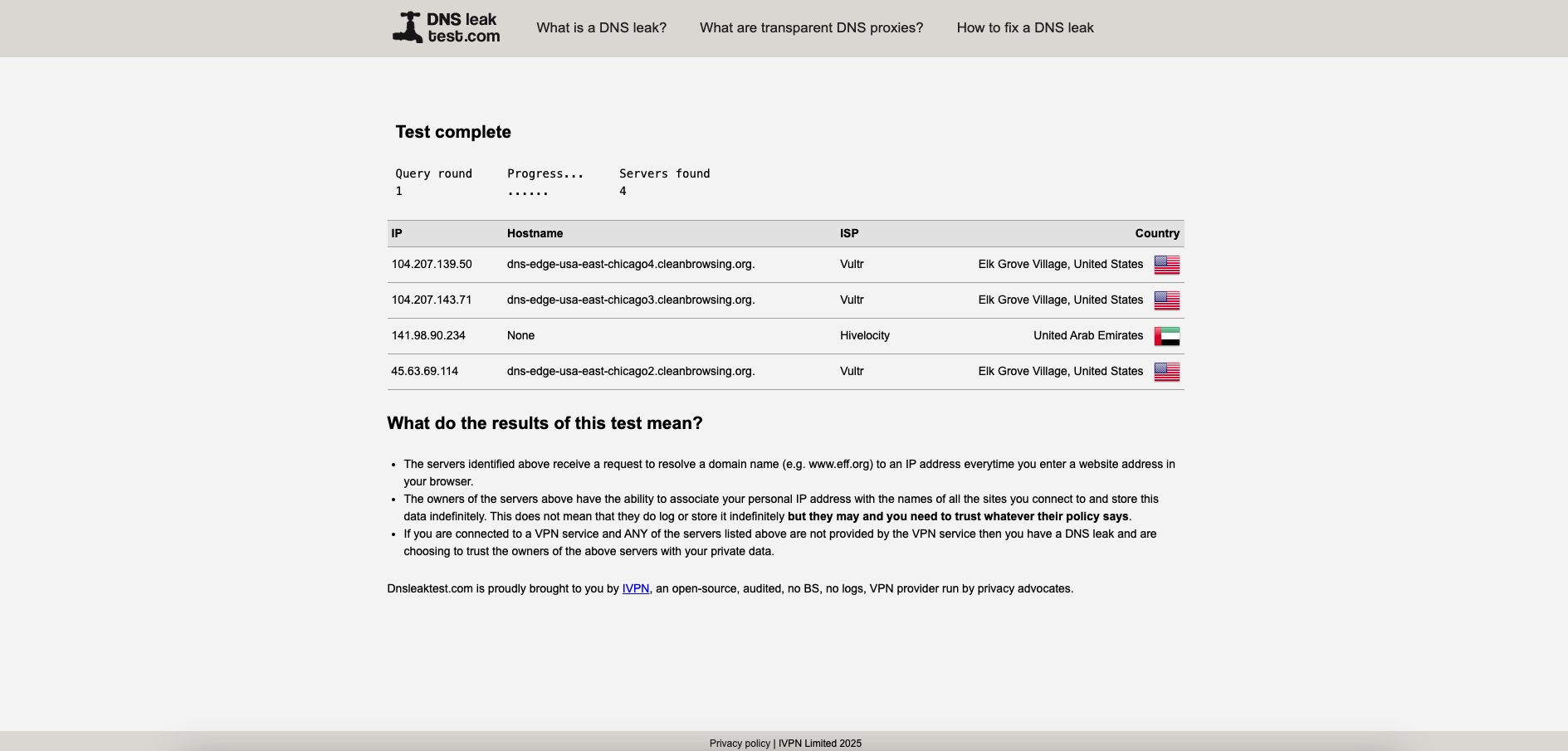
You can see cleanbrowsing.org is listed in the results. If you are not seeing cleanbrowsing.org in your results then there might be a configuration or device settings issue. I will give recommendations for troubleshooting that in this article.
Troubleshooting Content Filtering issues
Verify that you're on the right network which has content filtering enabled in UniFi
Check your local IP address, does it match the IP of the network with content filtering enabled?
Does whatismyipaddress.com show the correct public IP for the network you are on?
Check that Content Filtering is enabled for the network you are connecting to (see section below "How to enable Content Filtering")
Try a few different devices
If one device is not working, try a few others to see if maybe it's a device specific issue
Some devices work but others don't?
cleanbrowsing.org has a handful of helpful troubleshooting guides here. I've personally found that clearing the DNS cache on the device has fixed most issues:
Windows 8+
Command Prompt > Run as Administrator
ipconfig /flushdnsmacOS
Terminal
sudo dscacheutil -flushcache
sudo killall -HUP mDNSResponder
If this doesn't work there might be something else on the device interfering, it could be Apple's iCloud Private Relay for example.
How to enable Content Filtering
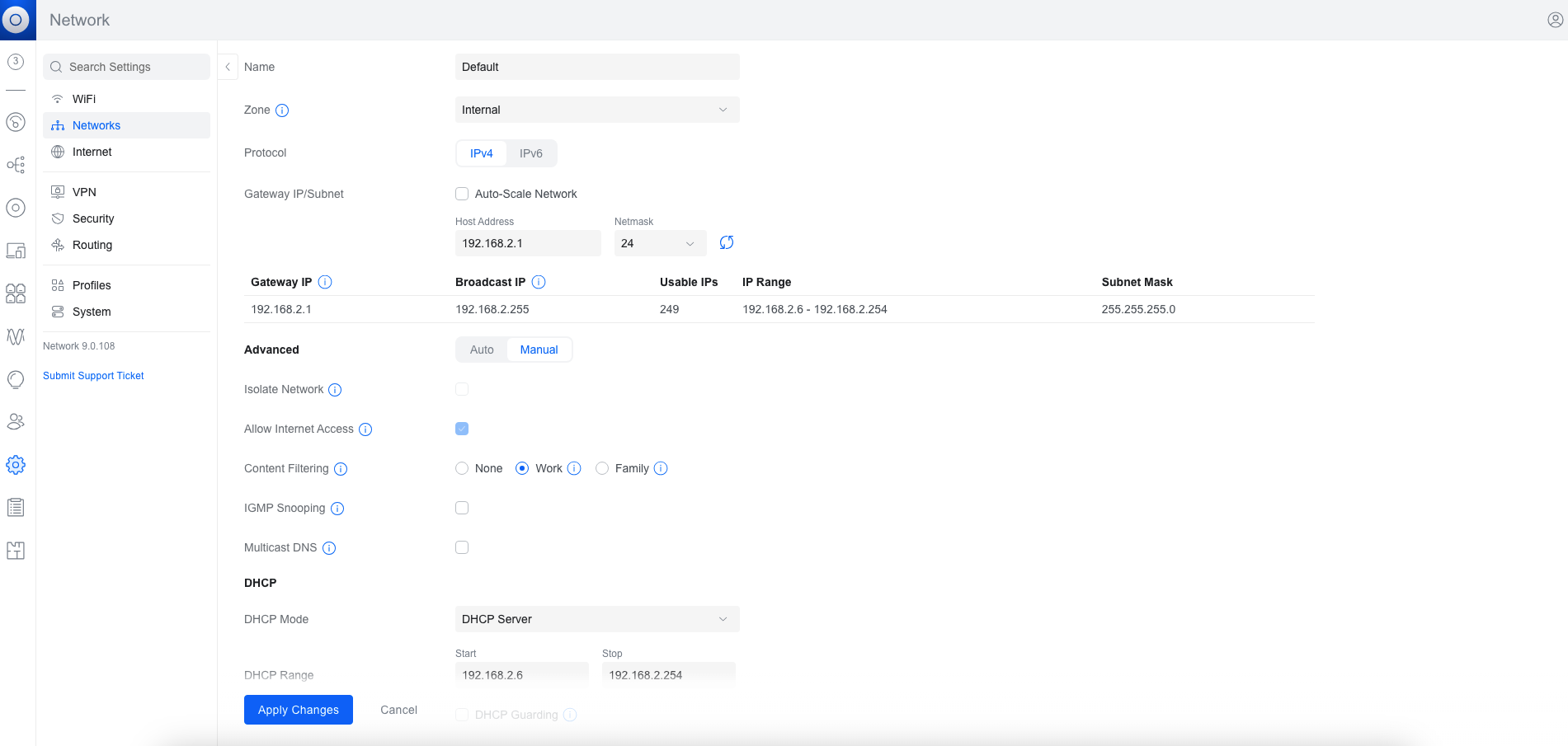
Content Filtering can be enabled under Settings > Networks > [Network] > Content Filtering
There are three options: None, Work, Family
Work blocks explicit, pornographic and malicious domains; Search engines and YouTube set to safe mode
Family is everything in Work plus it blocks VPNs
Does the Network need to have DNS Server set to Auto for Content Filtering to work?
No. Settings > Networks > [Network] > DHCP > DHCP Service Management > DNS Server can be set to Auto or specific servers and Content Filtering will still work.
Does Ad Blocking need to be disabled for Content Filtering to work?
No. Settings > Security > Protection > Ad Blocking can be either enabled or disabled and Content Filtering will still work.
Does Intrusion Prevention need to be disabled for Content Filtering to work?
No. Settings > Security > Protection > Intrusion Prevention can be off or on and Content Filtering will still work.
Does Encrypted DNS need to be disabled for Content Filtering to work?
No. Settings > Security > Protection > Encrypted DNS can be set to Off, Auto, Predefined, or Custom and Content Filtering will still work.
How to bypass Content Filtering
Even if the client changes their DNS servers their DNS requests will still automatically use cleanbrowsing.org content filtering, however, there are other ways to bypass the Content Filter which administrators should be aware of. Apple has a feature called iCloud Private Relay which, when enabled, anonymizes traffic. Here's a guide on how to disable that on macOS and iOS devices. There are other ways to bypass DNS filtering which are out of scope for this article. For increased security you could use a DNS product like DNSFilter.com (no affiliation to HostiFi) which installs on the client device and can prevent additional bypass methods.
How to Block or Allow a specific website or app category with Content Filtering enabled
If you see cleanbrowsing.org in the results but a particular website is not being blocked as you expected, or a website is being blocked which you want to be allowed, you can use Simple App Blocking under Settings > Security > Protection to block or allow devices or networks to apps or app categories in UniFi. These settings will override the DNS filtering.
About HostiFi
HostiFi provides hosting for Ubiquiti software platforms, with servers for UniFi and UISP. We also offer network consulting, with HostiFi Professional Services.

Get the Ubiquiti Top 20
Each month our team sifts through Ubiquiti news and content from around the web and delivers 20 of our favorite links to your inbox.
View recent issues
No spam. Unsubscribe anytime.
🤩
Discovered 3+ things that I did not know and will have a material impact on my business.
Newsletter Subscriber
🤩
All the info I want/need in a single clean thread! Perfect!
Newsletter Subscriber
🤩
Providing super valuable information to keep the community in the know. Awesome links page, Thank You.
Newsletter Subscriber