
UniFi - How to integrate UniFi email alerts with Mailparser
By integrating UniFi email alerts with Mailparser, we can extract the contents from those emails into variables like
If you want fast and reliable UniFi hosting, check out HostiFi with expert support, regular backups, managed updates and prices from $19 per month.
To learn more about our hosting plans, create an account or book a free demo to get started.
- site_name
- alarm
- device_name
- controller_url
These variables can then be rearranged to create new messages, and sent out to other integrations like
- Postmark - rewrite emails to include the site name in the email subject for example, and send the email out using Postmark
- Twilio - send UniFi alerts via SMS
- Slack - send UniFi alerts to a Slack channel
- Microsoft Teams - send UniFi alerts to a Microsoft Teams channel
- Discord - send UniFi alerts to a Discord channel
- Create an account at mailparser.io
2. Make sure you have a mailer server configured in your UniFi controller
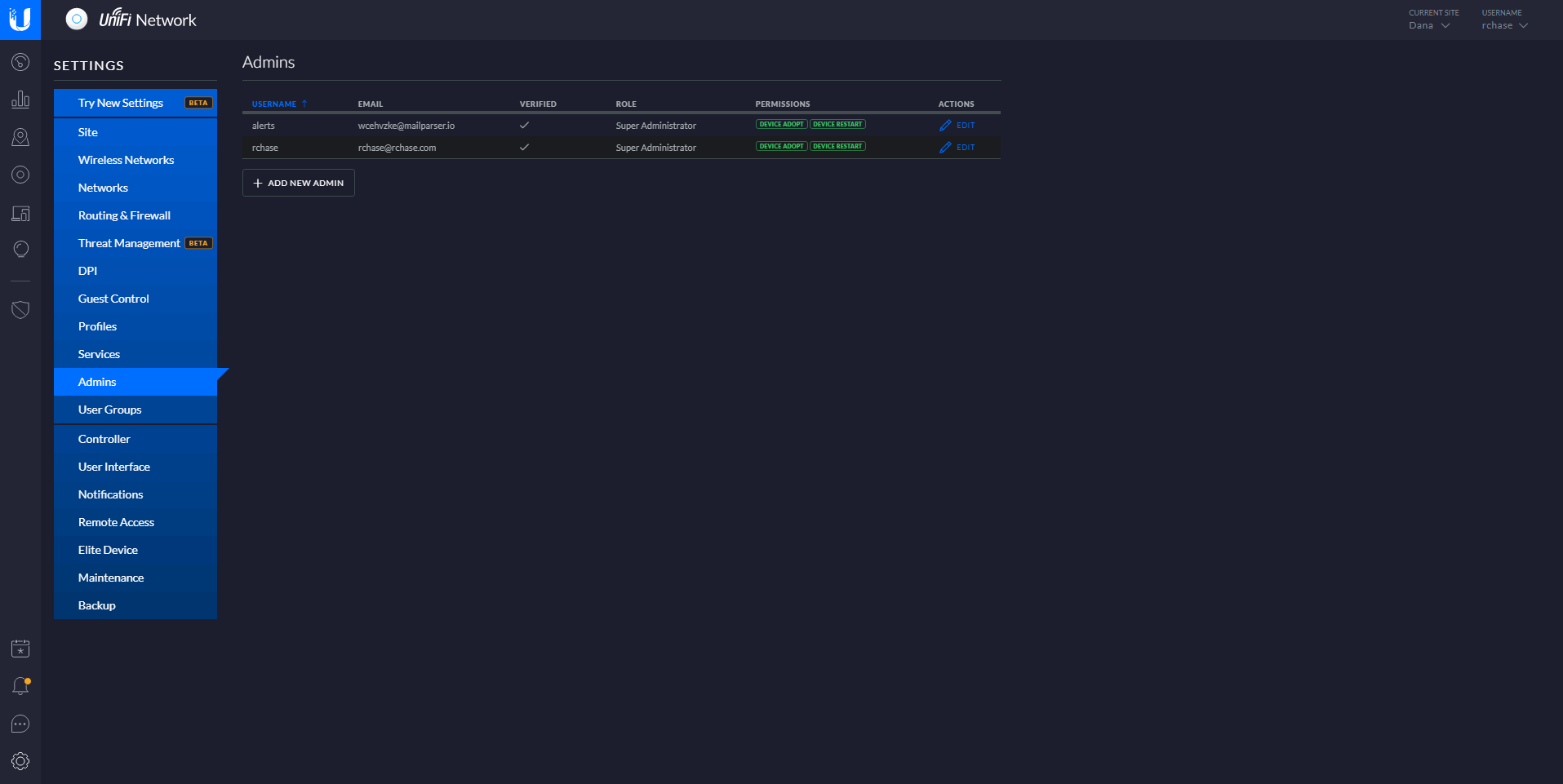
3. Create a Super Admin account in UniFi with the email address from Mailparser and a long random password
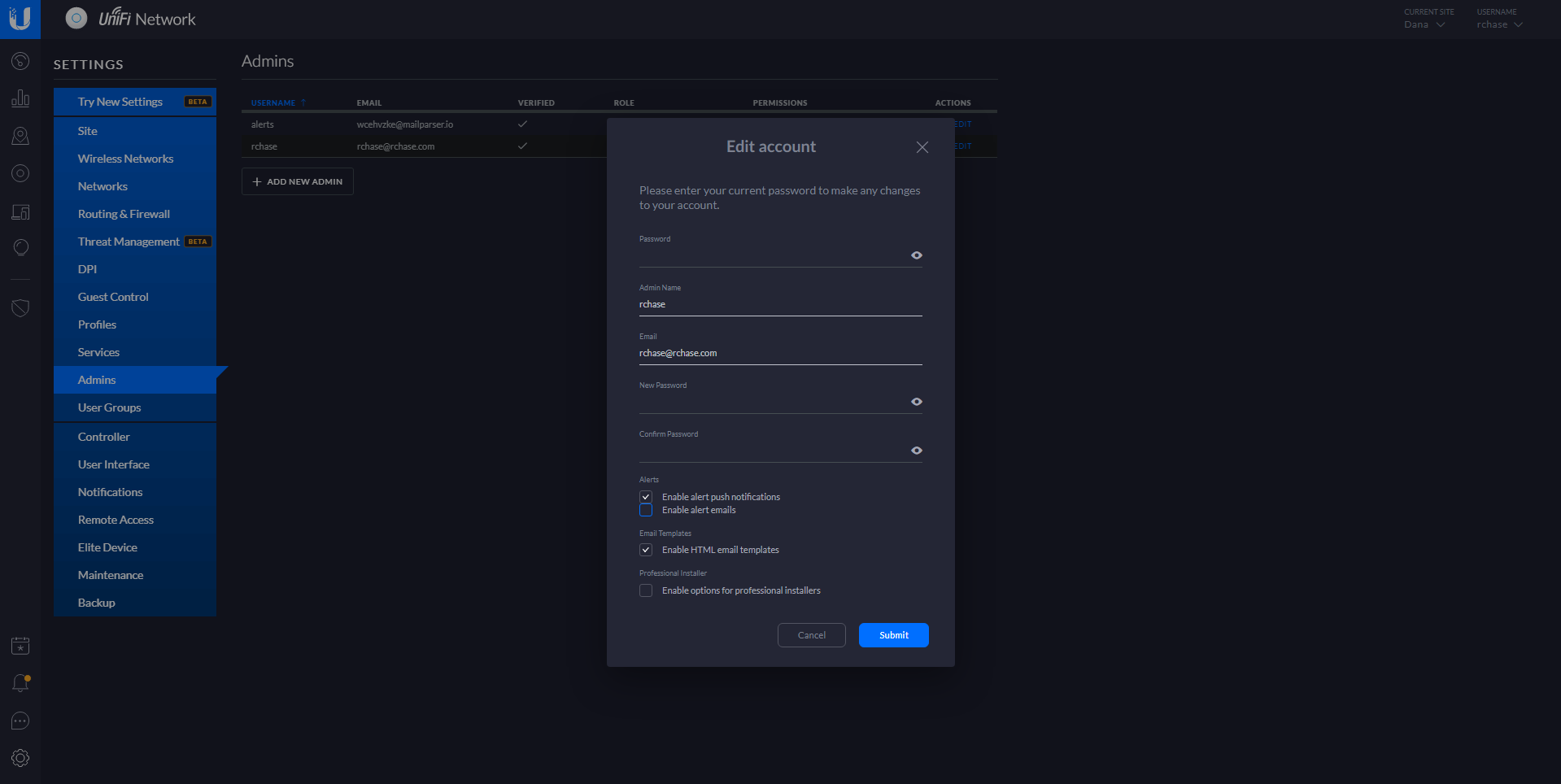
4. Disable email alerts on all other UniFi Admin accounts, we can use Mailparser to rewrite the UniFi alert emails and forward them on to the other Admins later on using the Postmark integration
5. Disconnect a device from UniFi to trigger an alert email to the Mailparser address
6. In Mailparser, go to Parsing Rules > + Add new parsing rule. In the upper right corner, click "Change sample email" and select the disconnected device alert email. Choose Body as the data location, and Plain Text as the type.
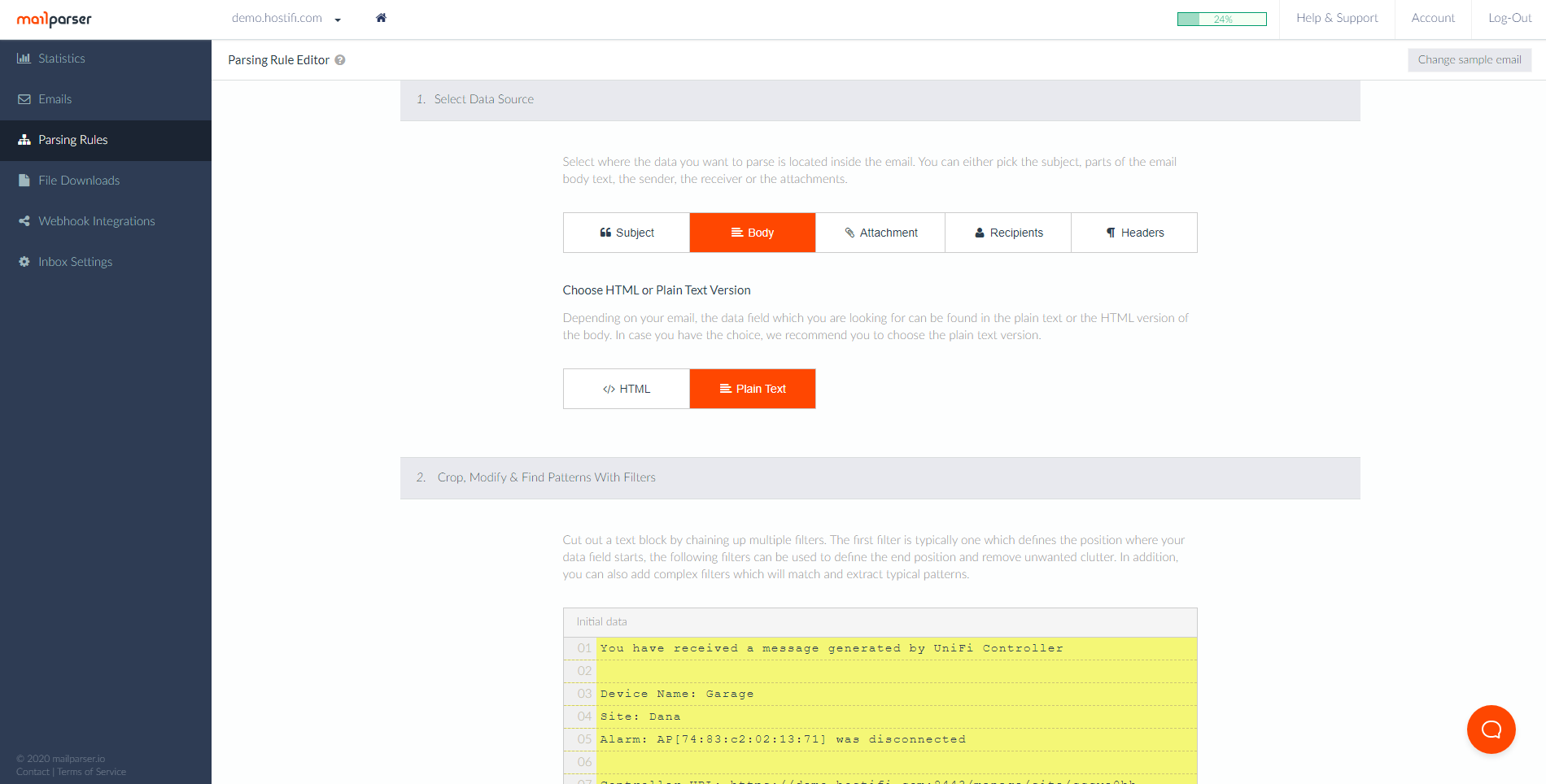
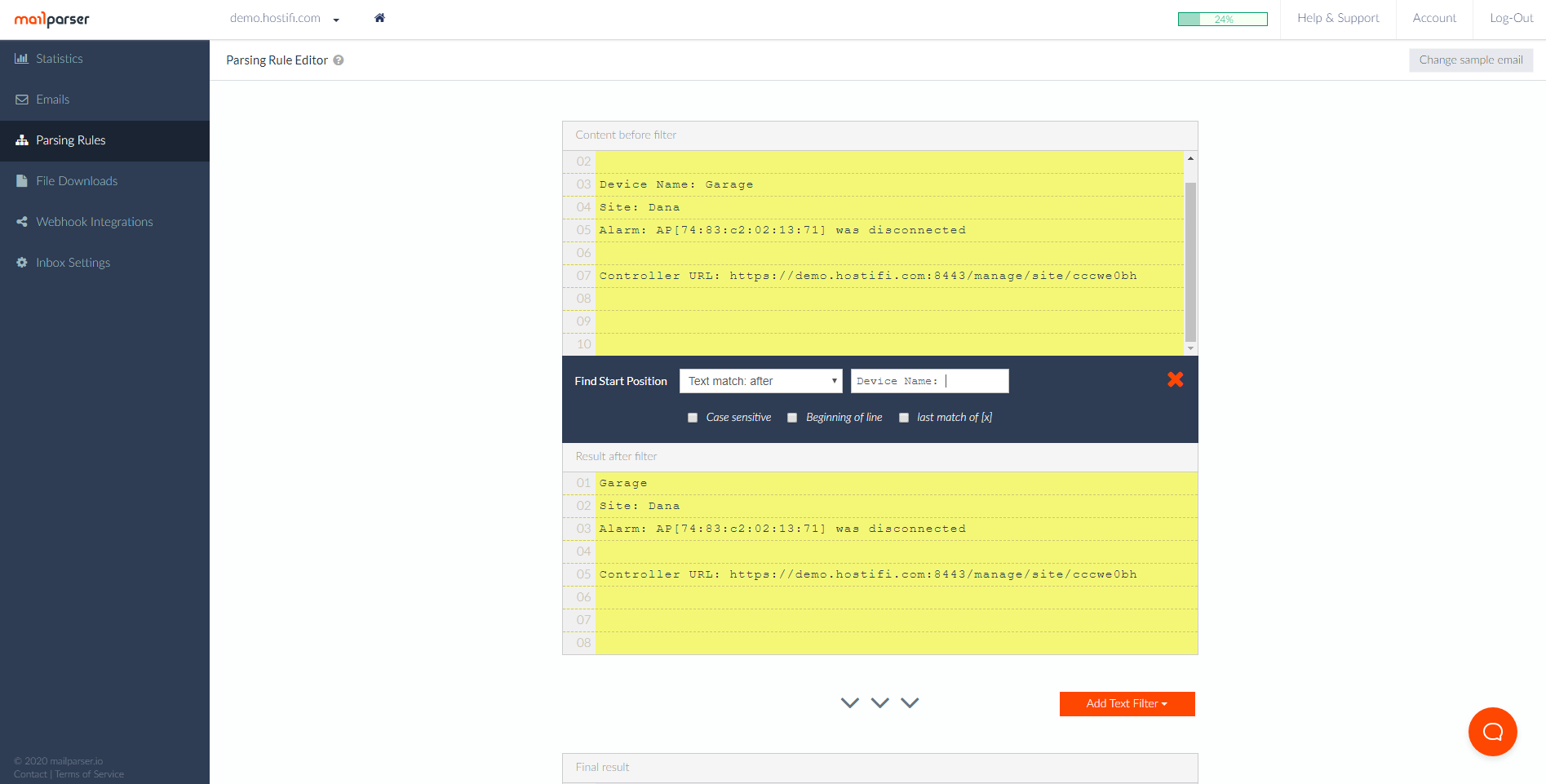
7. Next, we are going to extract the Device Name from the email and save it as a variable. Click Add Text Filter > Set Start & End Position > Find Start Position. Set it to Text match: after and type "Device Name: " into the text input.
8. Next, click the Add Text Filter > Set Start & End Position > Define End Position. Set the drop-down to "End of line".
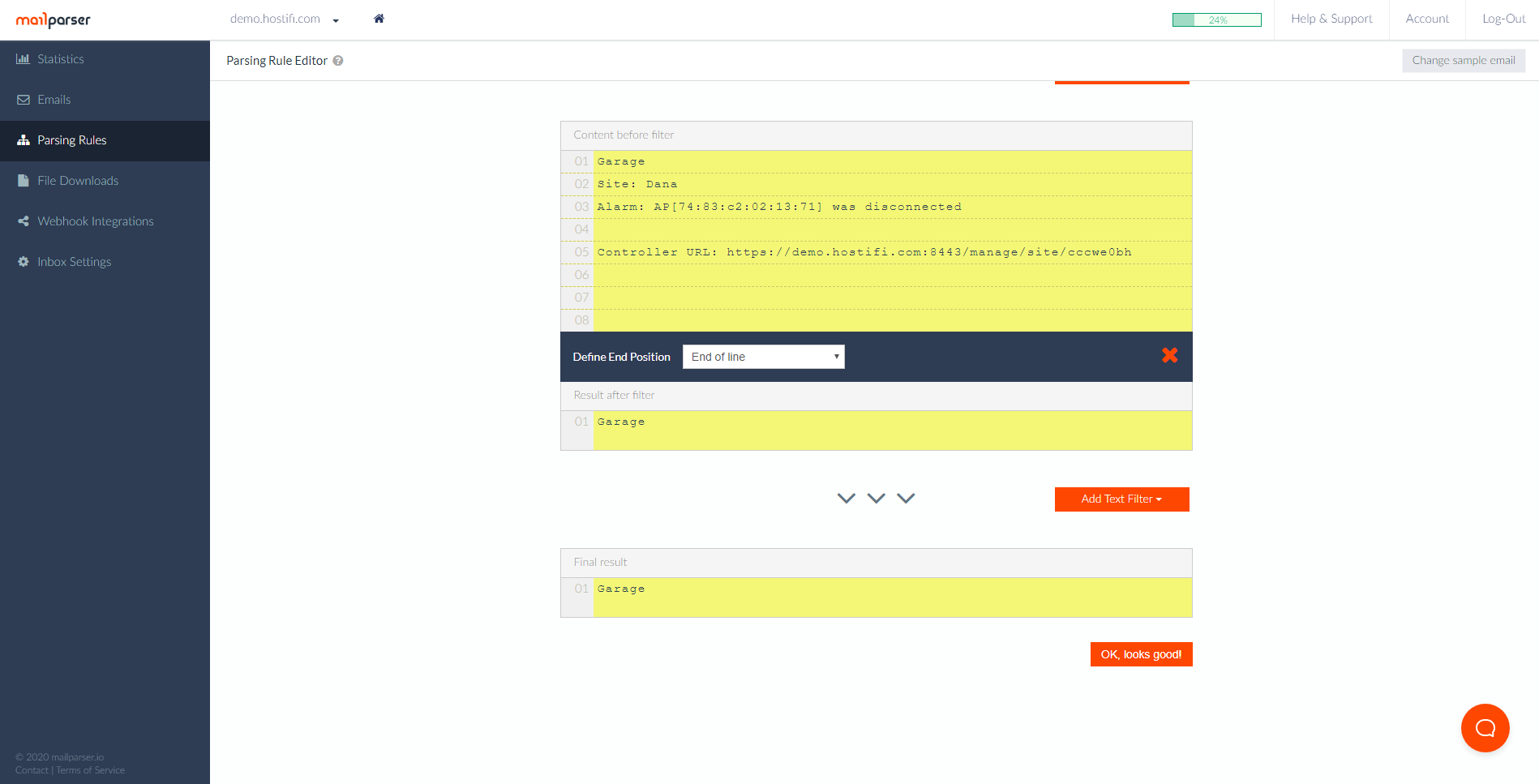
9. We've now successfully parsed the device name out of the UniFi alert emails! Click "OK, looks good!" to save it.
10. Repeat steps 6-9 to parse the Site, Alarm, Controller URL and any other data you need out of the emails.
About HostiFi
HostiFi provides hosting for Ubiquiti software platforms, with servers for UniFi and UISP. We also offer network consulting, with HostiFi Professional Services.

Get the Ubiquiti Top 20
Each month our team sifts through Ubiquiti news and content from around the web and delivers 20 of our favorite links to your inbox.
View recent issues
No spam. Unsubscribe anytime.
🤩
Discovered 3+ things that I did not know and will have a material impact on my business.
Newsletter Subscriber
🤩
All the info I want/need in a single clean thread! Perfect!
Newsletter Subscriber
🤩
Providing super valuable information to keep the community in the know. Awesome links page, Thank You.
Newsletter Subscriber