
UniFi - How to use UniFi Express as a wired AP
The UniFi Express is the only UniFi Cloud Console that can be used for two purposes, either as a small compact Cloud Console with support for up to a few devices or as an additional UniFi access point. It can be used as a wireless or wired AP to help extend your UniFi network.
If you want fast and reliable UniFi hosting, check out HostiFi with expert support, regular backups, managed updates and prices from $19 per month.
To learn more about our hosting plans, create an account or book a free demo to get started.
How to use UniFi Express as a wired AP
First, make sure the UniFi Express has been factory reset and is powered on. Wait for it to boot up, as it can take a few minutes

Plug in an ethernet port into the LAN port on the back of the UniFi Express and then plug in the other end to your existing UniFi Network

The UniFi Express will show up within the UniFi Controller as ready. Click adopt and it'll wirelessly connect to the existing network

If you are using a UXG with HostiFi or another UniFi Cloud Console, then the adoption process will be very simple, as it'll simply show ready for adoption. However, the process can be more complicated if you are using a third-party router.
The complications with the UniFi Express and set-inform
The UniFi Express is quite a unique device, as it can not only host the UniFi Network software, but also be adopted to it too. This does present one or two challenges, as in its initial boot-up phase, the integrated UniFi Controller is running. Issuing the info command shows us that it is connected to http://127.0.0.1:8080/inform, which is its own internal controller.
This means that the HostiFi Device Discovery Tool and the standard SSH method for device adoption won't work. Instead, adoption will need to be completed wirelessly with an existing UniFi AP and then the ethernet cable can be connected, upon which it'll turn into a wired AP.
How to adopt the UniFi Express to UniFi using a third-party router
To get around this and use the UniFi Express as a wired AP, make sure the UniFi Express has been factory reset and is powered on. Then, wait for it to boot up, as it can take a few minutes
Make sure Meshing is enabled within the UniFi Controller and leave any ethernet cables disconnected from the UniFi Express

The UniFi Express will show up within the UniFi Controller as ready. Click adopt and it'll wirelessly connect to the existing network
Once adopted, the small LCM screen will show the signal level, channel width and frequency

To turn it into a wired AP, plug in an ethernet port into the LAN port on the back of the UniFi Express and then plug in the other end to your existing UniFi Network
The screen will then change from a coloured signal bar to showing either GbE or FE
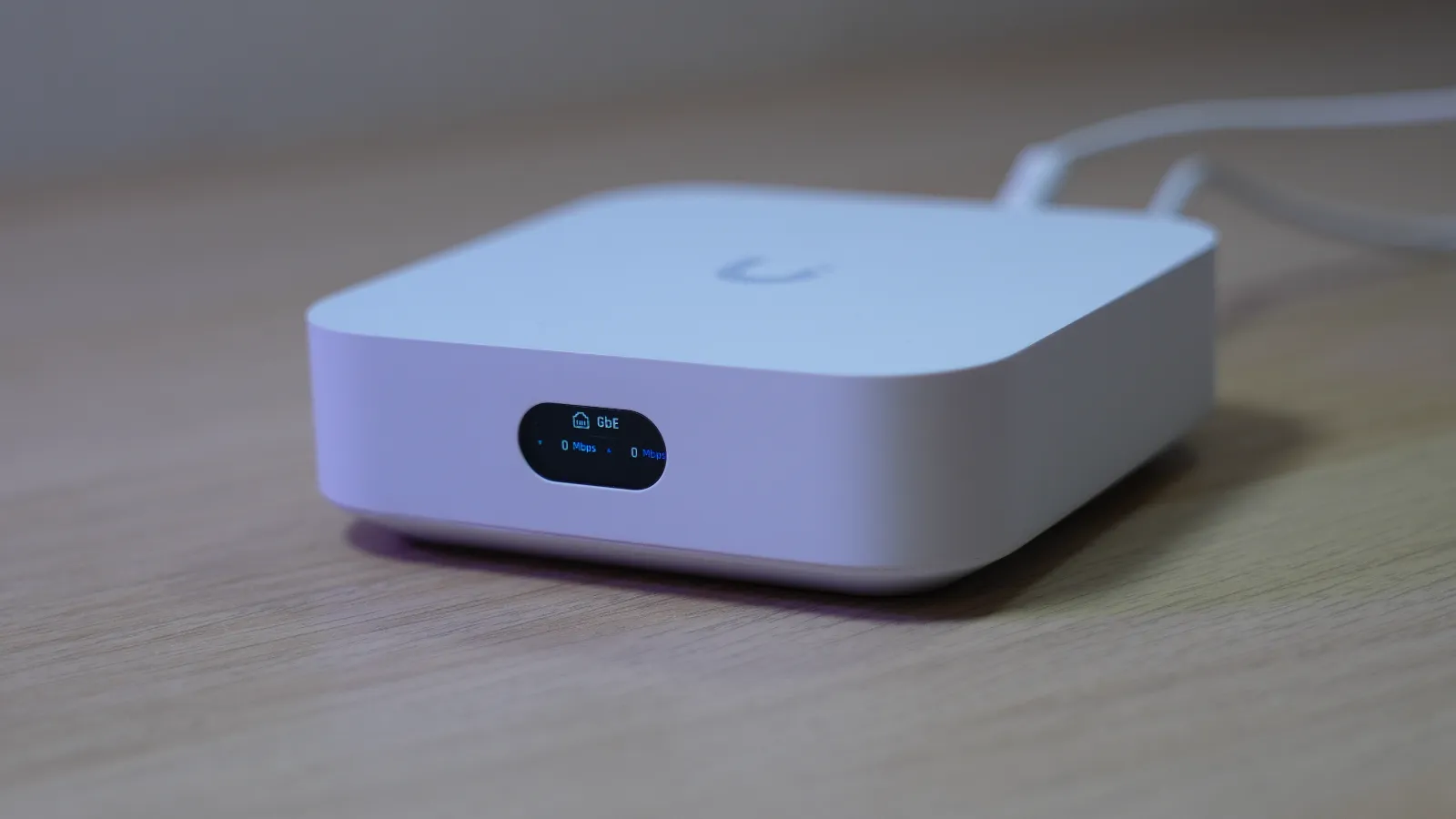
All done, your UniFi Express is now a fully functioning wired UniFi AP.
About HostiFi
HostiFi provides hosting for Ubiquiti software platforms, with servers for UniFi and UISP. We also offer network consulting, with HostiFi Professional Services.

Get the Ubiquiti Top 20
Each month our team sifts through Ubiquiti news and content from around the web and delivers 20 of our favorite links to your inbox.
View recent issues
No spam. Unsubscribe anytime.
🤩
Discovered 3+ things that I did not know and will have a material impact on my business.
Newsletter Subscriber
🤩
All the info I want/need in a single clean thread! Perfect!
Newsletter Subscriber
🤩
Providing super valuable information to keep the community in the know. Awesome links page, Thank You.
Newsletter Subscriber