
UniFi - UXG Lite First Time Setup
Learn how to setup the new UXG Lite for the first time, then get it adopted to HostiFi or any other cloud hosted UniFi Network Controller. For an overview of what the device does and the specs, see our blog post here.
If you want fast and reliable UniFi hosting, check out HostiFi with expert support, regular backups, managed updates and prices from $19 per month.
To learn more about our hosting plans, create an account or book a free demo to get started.
In this guide, we're going to explore the two ways you can get the UXG Lite adopted. Either via using a Ubiquiti online account or via manual L3 adoption.
Pre-requisites
First things first, open up your new UXG Lite and get everything plugged in. The UXG Lite is powered by USB-C and ships with an adaptor. For reference, it requires 5V at 3A.
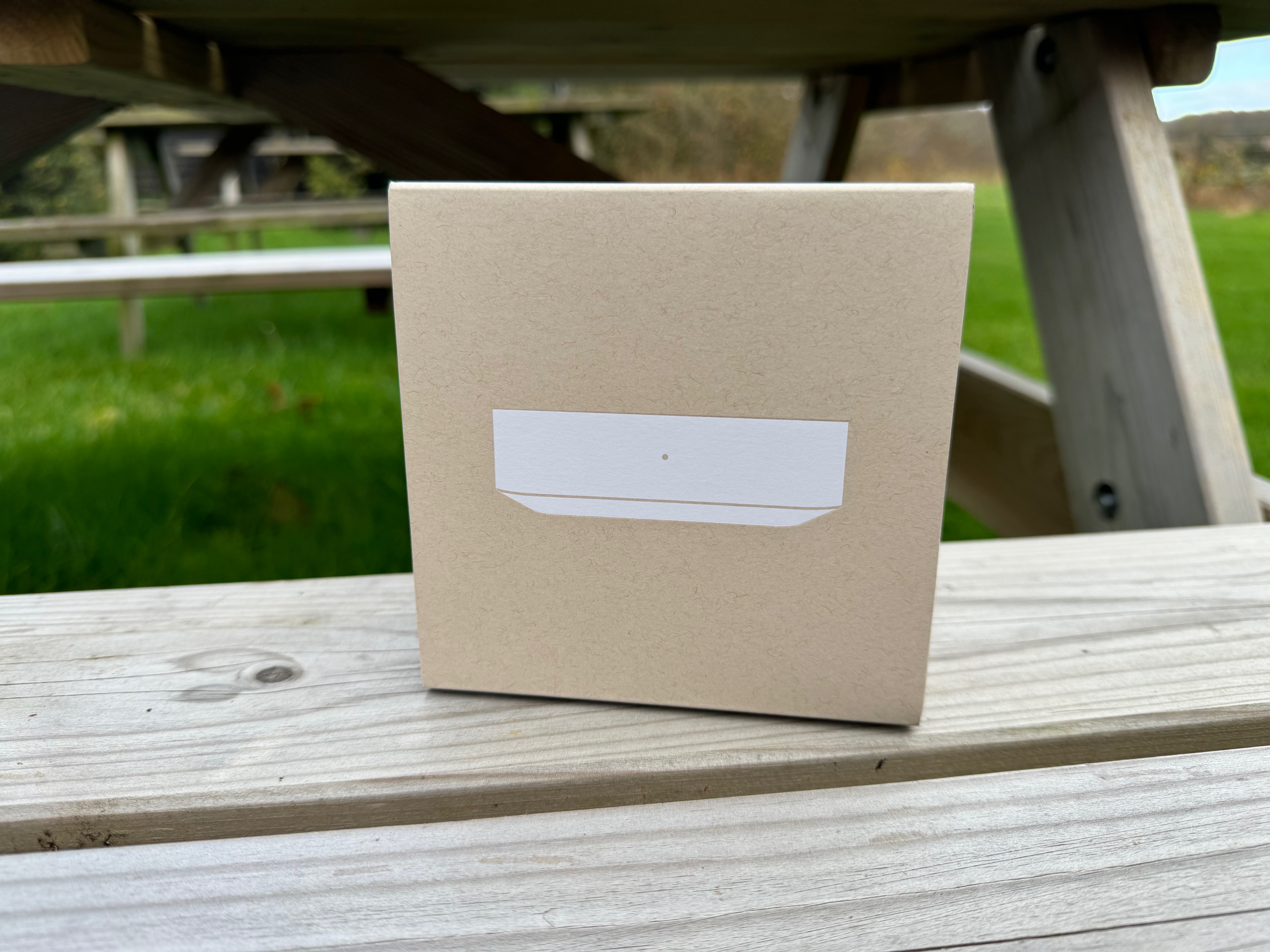
Next, plug in the WAN port to your modem/internet source and the LAN cable into your network. If you are migrating from the USG, follow our guide here.
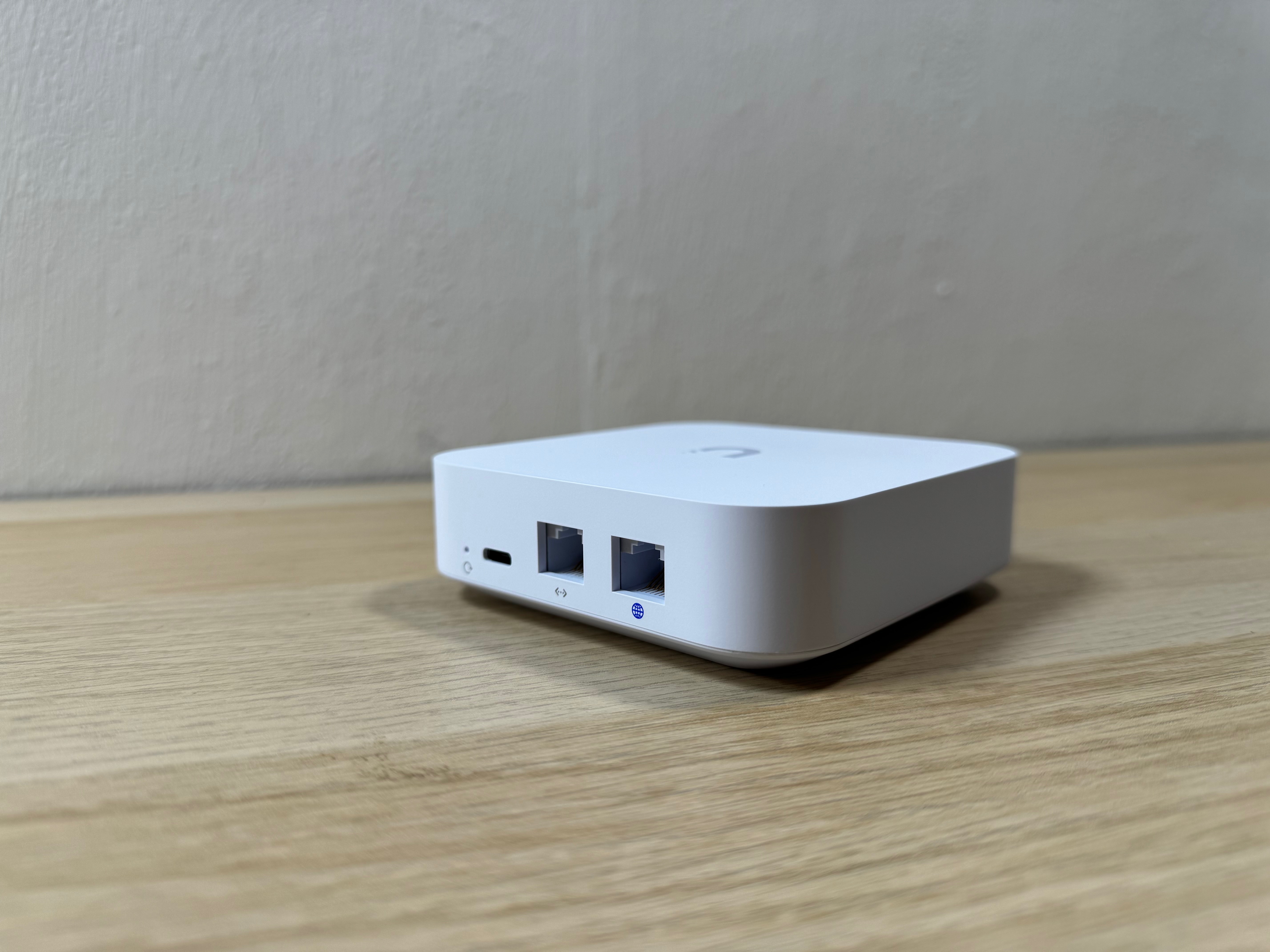
Next, we need to log into the UXG Lite. There isn't an LCM screen to find any information out, but by default the UXG Lite has an IP address of 192.168.1.1 and will hand out DHCP in the 192.168.1.0/24 scope.
If your upstream subnet happens to be on 192.168.1.0/24, the UXG Lite will notice this and ask you to change the subnet on the UXG Lite - either it can do this automatically or allow you to pick your own. It won't let you proceed until you have done this.
First Time Setup
UI Account Method
NOTE: In this method, we'll be setting up the UXG Lite and connecting it to a HostiFi UniFi Controller. This section assumes you have your UniFi Controller connected to your UI Online Account. To find out how to do this, see our guide here. Otherwise see the Manual L3 Adoption Section.
First, choose a name for the UXG Lite, then click 'Next'

By default, the UXG Lite will ask for DHCP on the WAN port. It also supports PPPoE or Static IP Address for WAN too. You can access these settings by clicking on 'Other Setup Options.'

Next, use your UI Account to sign in to the UXG Lite. Then click on 'Sign in'

In the next page it'll show a list of the devices on your UI Account, including Cloud Key, UDM and other devices. Under the 'Hosted Network Application' it'll show your HostiFi controller. Select the controller and click on 'Next'

Now, the UXG Lite will connect out to the application.

Next, we can now assign the UXG to a specific site. Choose the site and click 'Next'

Setup is now complete!

Log into your HostiFi controller to view the UXG Lite adopted.

Manual Method
For a manual adoption, most of this process is pretty identical. Where it differs is at step one where we need to click on 'Manually Connect to UniFi Network'

On this page, click on 'Self Hosted' and enter in all of the relevant details for your controller. These details can be found from your portal at app.hostifi.com. Enter in your account details and 2FA (if applicable) and then click 'Next'. From here the process is the same as the UI Account Method above.

About HostiFi
HostiFi provides hosting for Ubiquiti software platforms, with servers for UniFi and UISP. We also offer network consulting, with HostiFi Professional Services.

Get the Ubiquiti Top 20
Each month our team sifts through Ubiquiti news and content from around the web and delivers 20 of our favorite links to your inbox.
View recent issues
No spam. Unsubscribe anytime.
🤩
Discovered 3+ things that I did not know and will have a material impact on my business.
Newsletter Subscriber
🤩
All the info I want/need in a single clean thread! Perfect!
Newsletter Subscriber
🤩
Providing super valuable information to keep the community in the know. Awesome links page, Thank You.
Newsletter Subscriber