Ubiquiti introduces new UniFi Travel Router Long Range with AirWire style antenna
New UTR-LR is now available with more antenna gain and TX power
September 1, 2026

Announced in summer 2025, Ubiquiti is now supporting the self-installation of UniFi OS Server on your own hardware, meaning features previously unavailable such as Teleport VPN, UniFi Identity, Site Magic and more, are now available without the need for a Cloud Key or UniFi Dream Machine. It is supported on macOS, Windows and Linux.
Before deploying UniFi OS Server, check our guide for the supported operating systems and system requirements.
If you want fast and reliable UniFi hosting, check out HostiFi with expert support, regular backups, managed updates and prices from $19 per month.
To learn more about our hosting plans, create an account or book a free demo to get started.
First, SSH into your Ubuntu based system.

Then install Podman. UniFi OS Server requires Podman 4.3.1 or higher. To install run the following command.
Then update the packages for Ubuntu using the following command.

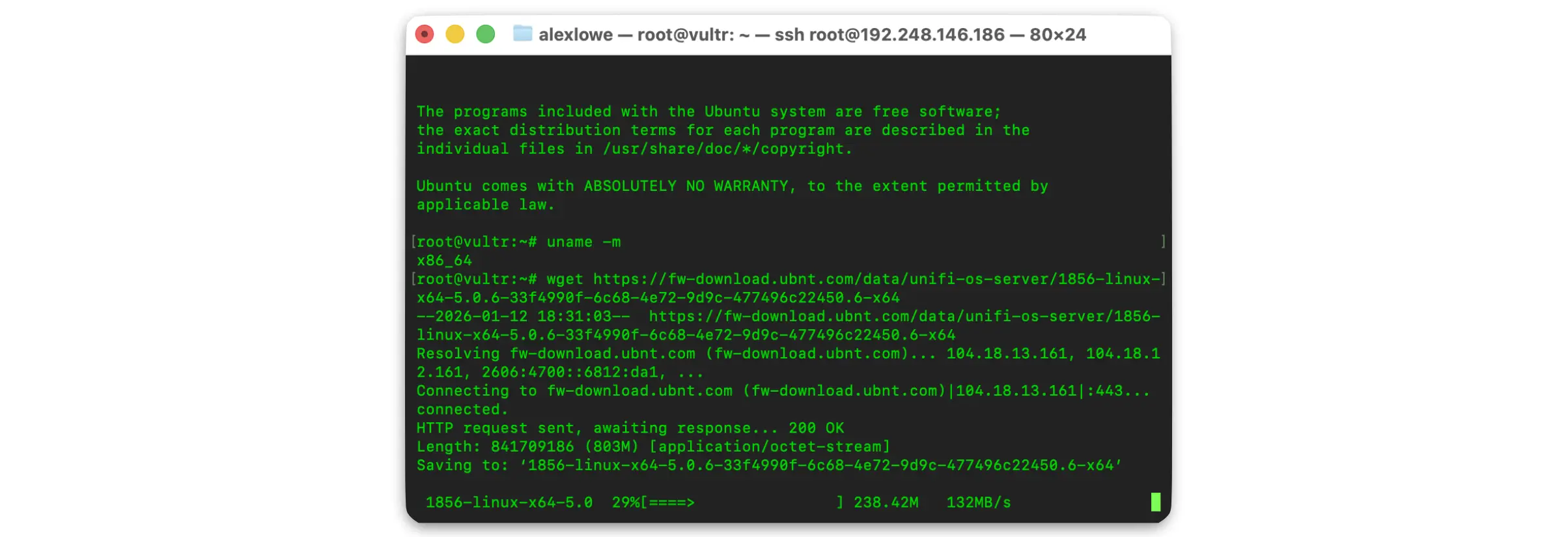
Next, check the CPU architecture of your server. If you know this already, skip to the next step. To do this run the following command.
The result back will let you which version of the UniFi OS Server to download. In this example, it is x86_64. For this, UniFi OS Server for Linux (x64) is required.

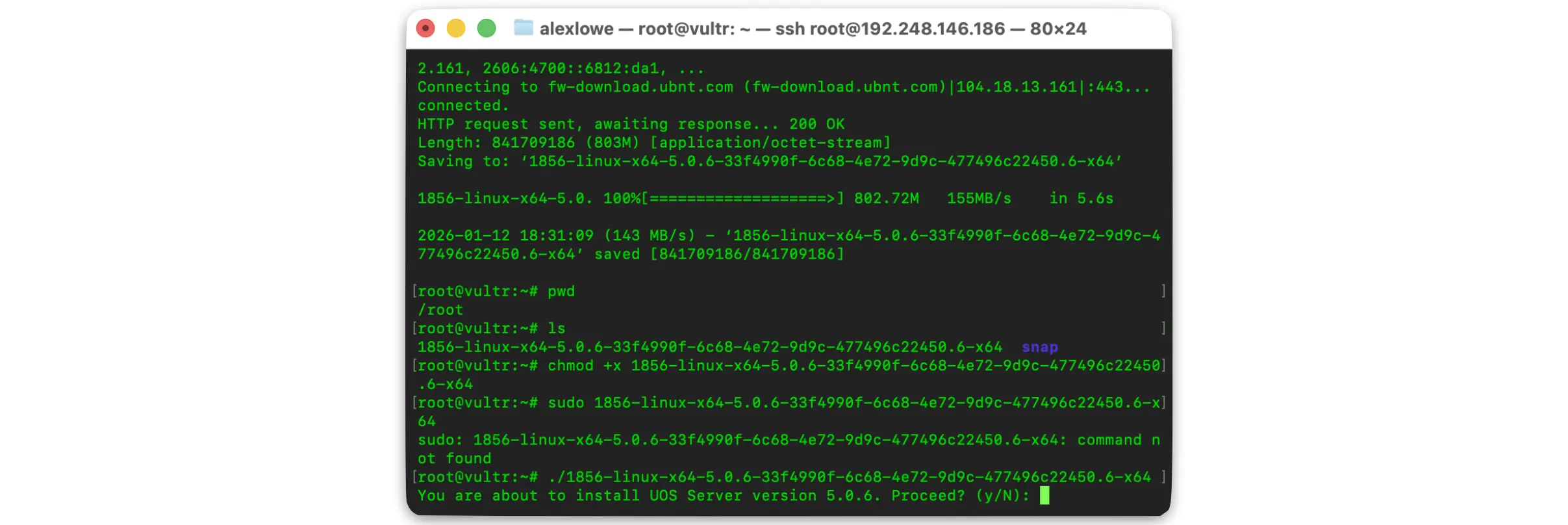
To download, run the following command and it'll automatically download the required files from Ubiquiti. Visit Ubiquiti's download page for the latest URLs.
Next, the downloaded file needs installing. First run the following command to check the file name.

Then to make the downloaded file executable, run the following command.

Next, we need to run the installer. This can be achieved in two ways, either by running this command.
Or if the file has been save to root, run this command
Next, run through the installer - this process can take around 5 minutes to complete.

Once completed, it'll let you know how to access the web interface.

However at the moment, no ports are actually open, so to add those run the following commands.
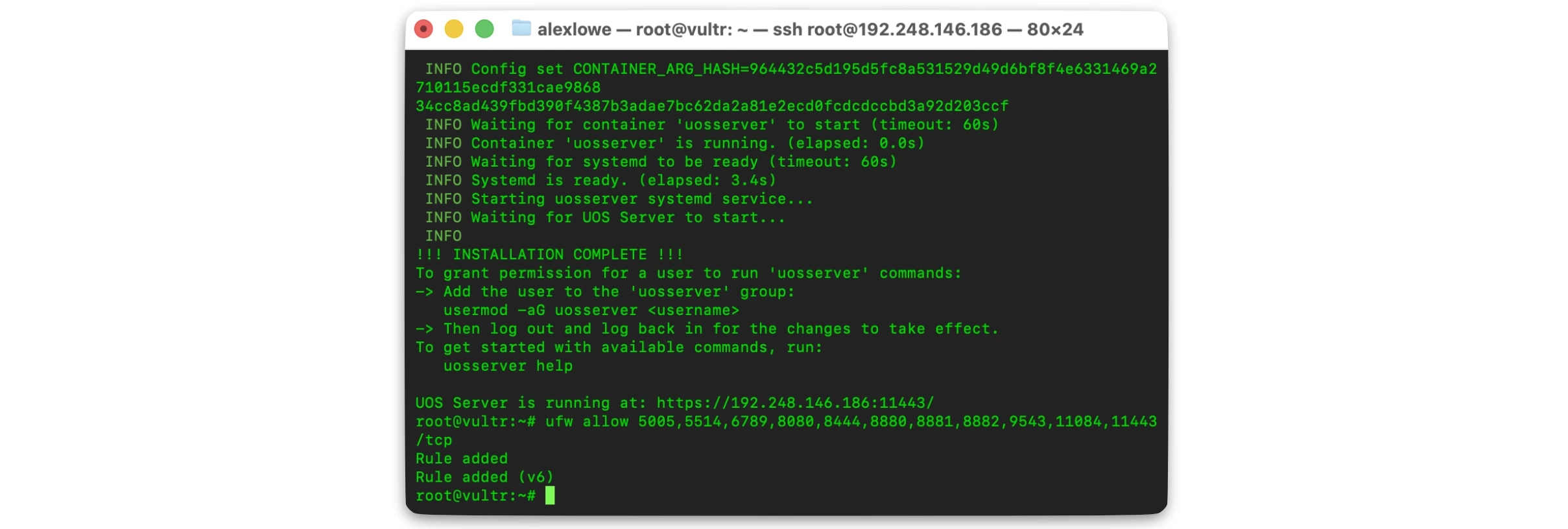
Then check they are added correctly.

Then visit the web interface to check everything is working and follow through for setup. UniFi OS Server uses port 11443 for HTTPS web access.

Complete the initial UniFi OS Server setup, which involves:
Finally, before adopting any new devices visit the Control Plane and update the UniFi Network application to the latest GA version.
Being able to install UniFi OS Server on Ubuntu provides easy deployment for small environments for testing purposes, but for use in production across multiple external sites it could get complicated. This is where HostiFi comes in, with fast support, global data centre presence, managed updates and regular backups.

No spam. Unsubscribe anytime.
Newsletter Subscriber
Newsletter Subscriber
Newsletter Subscriber